Greetings,
This week I will be sharing more of the free activities we participated in during the event. Remember you can also participate in these activities with your students. Here are 7 of the most popular ones:
1. Monster Match Exchange
2. Animal Exchange
3. Community Exchange
4. Read Around the Planet
5. Math Marvels
6. Mystery Quest Beaches
7. Whirlidurb: Shane Sings
1. Monster Match Exchange Project: Two classrooms are paired up and each class will have the opportunity to draw their own monster. The first class will communicate or write a description of their monster and post it online. The second class will then get the opportunity to draw a monster that matches the description of the first classroom. Both classes will meet via video conference to compare and contrast the original drawing of their monsters. For more information on this exciting project please visit:
www.humbleisd.net/monster/ and
http://disdvideoconferencing.pbworks.com/Monster+Exchange

2. Animal Exchange Project: Two classes are paired up and will select an animal that is found in their state or region. Each class will prepare a presentation about an animal to share with the other class. The presentation should be about 5 minutes long and include the habitat, movement, description and what it eats. The presentations may include the following a visual, sound, act out motion/movement, or a song/poem about their animal.Each class can break up into groups and each group will will research the topics listed above. Both classes will meet via video conference to give their description to the other class. Next, both classes will research online what the other classes animal is. Both classes will take turns to meet via video conference to guess the other classes animal.

3. Community Exchange Project: Both classes will prepare a presentation about a community to share with the other class. The presentation should be about 5 minutes, and include visuals. Here are a few ideas that you may want to include in your project: information about demographics of community; cultural institutions, zoos, museums; schools including size, curriculum, structure; a map of the community/city/state; type of food that is popular, favorite sporting events and trivia. After each class presents via video conferencing there will be time for questions and answers.
4. Read Around the Planet Project: This is a project that celebrates National Education Association's Read Across America. Classrooms use interactive video conference to connect with other classrooms "around the planet" and read to each other. The presentation should be about 5 minutes and can be related to reading or promoting literacy. Here are a few ideas that a project may include: skits or plays, raps or songs; puppet show, readers theater, poetry, sign language, illustrations, dramatizations, student-centered books, original poetry, songs and trivia. For more information on this project please visit: www.twice.cc/read

5. Math Marvels Project: Both classes will prepare problem solving and communicating solutions/strategies using higher order thinking skills. Students will create math problems to communicate via video conference to each other to solve. The two classes will use good math problem solving skills and use various strategies/discussions. Students will need to create problems that have an answer of a number before the video conference. After each class has had time to solve the math problem, they will share their response via video conference. For more exciting information about this project, please visit: http://katyvc.pbworks.com/Math-Marvels

6. Mystery Quest Beaches Project: Both classes will prepare a 5 to 7 minute presentation on a mystery beach. Each class may divide researching the clues for their beach. When creating the presentation, students will need to clearly communicate effective clues to the other class via video conference. You may use the following ideas to create clues: region, location and place.
Beach Clues:
Region
1. Describe how land and sea areas define the country's borders.
2. What other landmarks are close to the beach?
Location
1. What is the latitude or longitude of the beach?
2. What is the relative location of this beach?
3. Which direction from the country capitol do you travel to reach the beach?
Place
1. What body of water is closest to the beach?
2. What is the area of the country in which the beach is located?
3. What is the primary language of the country in which the beach is located?
4. What is the population of the country in which the beach is located
5. Name and describe a tourists attraction near your beach and illustrate if possible.
6. What is the population of the nearest city?
7. Describe one or more notable physical landforms in or near this city.
Once all the clues have been communicated from both classes via video conference (30 min.), then the research begins on the Internet (20 min.) to figure out the location of the beach. After all questions are answered, then each group will present their answers to the other class. Both classes will need to create a visual poster with the correct name of their beach. The correct mystery of the beaches will be revealed by students at the end of the video conference.
For more information on this project and to get a notes template, please visit: http://mysteryquest.wikispaces.com/

7. Whirlidurb Project: Introduce video conferencing to you early childhood classes through different animated characters that will be singing and asking them questions. The different animated characters are created with animated avatars that the presenter uses to communicate with your class. Your students will absolutely love this activity. For more information on this program, please visit: http://shanesings.whirlidurb.com/

These were just a few activities and projects you can participate in with video conferencing equipment. I hope you get the opportunity to conduct a virtual field trip or a video conference event with your students. We will see you next week with another exciting topic.

 These quick reference guides can assist you in your training needs. Hope you enjoy these free guides. We will see you next week with another exciting topic. Take care.


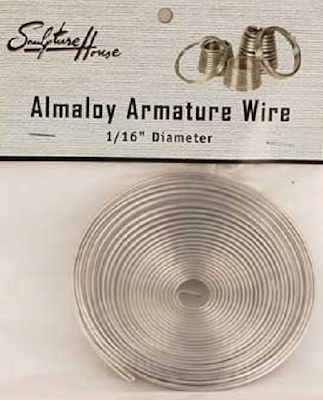
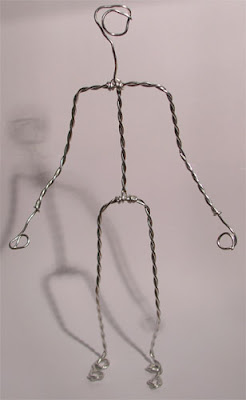
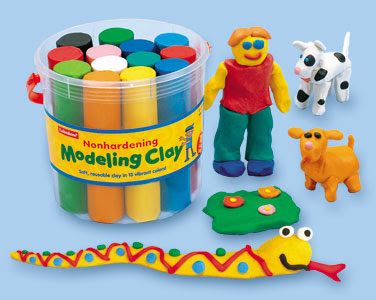 * You also might want to visit an art and craft store to get plastic eyes, mouths and noses for your character.
  Greetings,
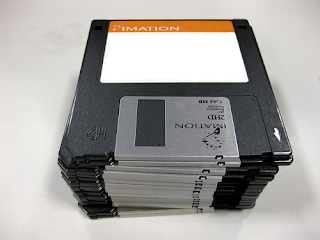 25MB is equal to almost 18 3.5 inch floppy disks. It's amazing how far technology has advanced.
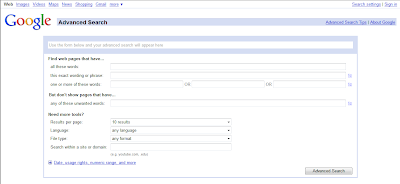
 For example, let’s say you are looking for an interactive flash web site when teaching a concept or objective; all you have to do is pull down the drop down box and choose
  The fist thing you want to do is input the students names manually.
 After you have all the names of your students in your class. You have two choices.


 Your students will enjoy watching the countdown timer when they are in working in small groups, or independent practice. After you have downloaded the program, you can choose different built in alarm sounds to sound off when the time expires. You can even personalize the timer by having a short message scroll across the screen.