Total Pageviews

Showing posts with label google. Show all posts

July 25, 2010

How to Search Google?

Greetings,

Hope you are doing well today. I will be blogging about how to do a Google search for documents, pictures, and videos. When you go to http://www.google.com/ you need to type in the search box you topic of interest, and then you type the following file extension in quotes:

1. For MS PowerPoint Documents you type “ppt

2. For MS Word Documents you type “doc”

3. For MS Excel Documents you type “xls

4. For Adobe PDF Documents you type “pdf

5. For Flash Videos you type “swf

6. For a specific phrase you need to type it all in quotes

If you want more options, then click on the right side of the box under Advance Search. Next, you will see the following options under Advance Search.
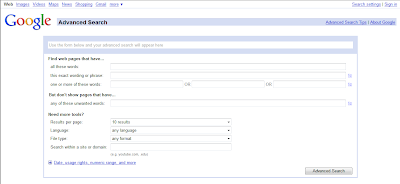


Then you can follow the instructions in the search boxes. If you go to the last topic on Need more tools, you can pull down the drop down arrow boxes to get more options on your search. You can even narrow down the file search to a particular type of file.


For example, let’s say you are looking for an interactive flash web site when teaching a concept or objective; all you have to do is pull down the drop down box and choose Shockwave Flash. Once you chose this option, then all you will find are flash video sites. Try it out with the water cycle. If you want more search options, please visit the following: Advanced Search Tips

To look for pictures you need to go to http://www.google.com/ and hover your mouse on the top left side of the screen, and you will see a blue Images link. Click on the link, and then type the name of picture you are searching for in the search box. You will do the same for Videos. Hope these helpful tips help you out. I will see you next week with another topic.

May 9, 2010

Using Video Footage with Other Compatible Software: Part 5

Greetings,

Today we will be reviewing other ways to share your movies through online web sites, and how to work with other compatible software programs. Ok, we will start with the share menu option at the bottom of the menu it looks like this:


When you click on the Email option you will see this menu:


All you have to do is drag your video to the box and follow the prompts on the screen to email your video to your family and friends. You can also have your own flip channel


You can also share your videos online on the following web sites below. Just drag the video to the box and follow the prompts. If you choose the option, other web sites it will allow you to export it to a folder on your desktop.

When you are exporting your video, you will see the action bar light up on the bottom right. You will see a light blue bar and it will move from left to right, depending on how long your movie is. Once it is finished your movie will be in MPEG format.


If you want to convert it into an avi, wmv, flv or swf you need to use a media file converter. You can get a free one at www.formatoz.com/download.html Once you download it, you will see the following options: (Remember to click on the picture to see a larger version)


Choose your file format options on the left side and follow the instructions and the program will convert your file for you. If you want to edit your files in Windows Movie Maker 2, you want to change the file format to wmv. You can add your movie to MS Office PowerPoint 2007. You can also edit your still pictures in PhotoStory 3 if you wish.
Let's get started with how to import your video in Windows Movie Maker 2. Just follow these simple steps.
1. Open Windows Movie Maker 2, it is under Start ->Program Files menu.
2. On the file menu on the top left, click Import Into Collections or in the movie task pane under Capture Video, click import video or import pictures. In the file name, enter the path and the name of the file you want to import, and then click import.
To add your movie to MS Office PowerPoint 2007, follow these steps:
1. Make sure you copy your movie in the same folder as your PowerPoint presentation before you add the movie to your presentation.
2. Click on the slide you want to show your movie on.
3. On the Insert tab, in the Media Clips group, click the arrow under Movie.
4. Click Movie from File, locate the folder that contains the file, and then double-click the file.
To insert a picture
1. Click on the slide you want your picture on.
2. On the Insert tab click on picture.
3. An insert picture window will appear, locate the folder that contains the file and then double-click the file you want to add.
If you don't have Photo Story 3, it's a free download, click here Simply follow these steps to Import and arrange your pictures.
1. On the Import and picture page, click Import Pictures.
2. In the File Browser dialog box, on the All Files tab, click the folder where your pictures are located on your computer. Select one or more pictures, then click ok.
3. Your pictures will be added to your Photo Story project.

If you don't know how to use Movie Maker 2 or Photo Story 3 simply go to google and type the following: "Movie Maker tutorial" or "photo story 3 tutorial." I Hope these blogs have been helpful in assisting you in using the new Flip Digital Camcorder.

Next week, I will be blogging about slideshare and scribd. These are web sites where you can sign up for free, and download and share your own resources with others.  I will see you next week with another exciting topic.