Total Pageviews

Showing posts with label microsoft. Show all posts

July 25, 2010

How to Search Google?

Greetings,

Hope you are doing well today. I will be blogging about how to do a Google search for documents, pictures, and videos. When you go to http://www.google.com/ you need to type in the search box you topic of interest, and then you type the following file extension in quotes:

1. For MS PowerPoint Documents you type “ppt

2. For MS Word Documents you type “doc”

3. For MS Excel Documents you type “xls

4. For Adobe PDF Documents you type “pdf

5. For Flash Videos you type “swf

6. For a specific phrase you need to type it all in quotes

If you want more options, then click on the right side of the box under Advance Search. Next, you will see the following options under Advance Search.
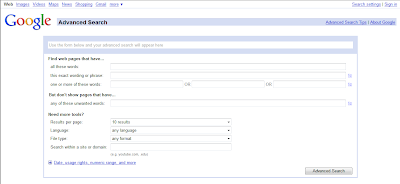


Then you can follow the instructions in the search boxes. If you go to the last topic on Need more tools, you can pull down the drop down arrow boxes to get more options on your search. You can even narrow down the file search to a particular type of file.


For example, let’s say you are looking for an interactive flash web site when teaching a concept or objective; all you have to do is pull down the drop down box and choose Shockwave Flash. Once you chose this option, then all you will find are flash video sites. Try it out with the water cycle. If you want more search options, please visit the following: Advanced Search Tips

To look for pictures you need to go to http://www.google.com/ and hover your mouse on the top left side of the screen, and you will see a blue Images link. Click on the link, and then type the name of picture you are searching for in the search box. You will do the same for Videos. Hope these helpful tips help you out. I will see you next week with another topic.

March 28, 2010

How to Find Free Microsoft Office Power Point, Word and Excel Templates


Greetings,

Today I am blogging about how to download thousands of free office templates from Microsoft Office. If you click on the picture above, it will take you to the Microsoft site where they post their free templates. Also if you create a template, you can upload it to their server and others will be able to download it as well. I am currently working on a (5 Year Planner) 2010 - 2015, 3 month planning calendar that I will be posting soon on the site. Stay tuned and I will let you know when I post it. It will be posted under academic year calendars. Hope this helps out. See you next week.

January 17, 2010

How to Take Pictures of Your Computer Screen Using MS Office 2003

Hello,

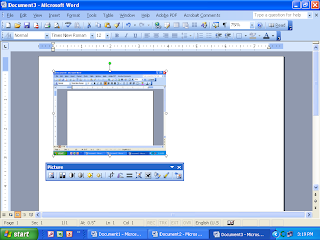
I hope you had a great week. Today I am sharing with you how to take screenshot pictures using MS Office 2003. Remember, all you have to do is push the print screen button on your keyboard. Whey you do this it will take a digital image or picture of your screen, like you see on the top. After you click it, you will not see any message that tells you that you have taken a picture and it is now ready to post. In fact you won’t notice anything different about your screen. When you click on the right side of the mouse chose the option paste and it will copy your picture in your office Document or PowerPoint. To edit the picture you have to double click fast on the left side of the mouse and you will see the Format Picture Box. If this does not work you will need to go to the very top of the screen and and chose the third option View. Then go down to the Toolbars option and check the option: picture and you will see a Picture tool bar appear on your screen like this Once you see the Picture option box, choose the little dog. It is the 4th Picture from the right side of the toolbox and choose the option Tight.

If you want to edit or crop the picture chose this icon Once you click on the little crop icon, you will see black lines around your picture. All you have to do is left click on the lines while holding the mouse and move the mouse to where you want to crop or cut the picture. Now if you double clicked on the picture you will see the following six tab options Color and Lines, Size, Layout, Picture, Text Box, and Web. You want to chose the third tab or the Layout option. When you chose this option you will see the following Next, you will click on the Tight option. It is located in the middle of the screen. Now you must decide if you want the picture aligned left, center, right or other. I would chose other and the when you click on the picture it will allow you to move it anywhere you want in your document. Once you chose the option you want click on the OK button on the bottom. You will see little white round dots around your picture (To see these white dots look very closely at the picture at the very top), which means you can now hold down the left side of the mouse to move it anywhere you want in your picture. You can also make the picture small or large by clicking on one of the dots and moving the mouse. Hope these directions help you out when you are practicing taking screen shot pictures and inserting them in your Documents or Power Points. We will see you next week.

November 29, 2009

Making Professional Movies with Digital Pictures/Videos for Free!

Today, I am going to share with you some valuable resources on how to make free movies or digital stories with your computer. There is a free software program the Microsoft has installed on all computers that have Windows and most people do not even know that this program is on their own computer. The name of this free program is called Windows Movie Maker (2).

So, what do you do with all those digital pictures and videos you have taken over the past holiday? You can turn them into a professional movie by using the program above. To find the program on your computers you click on Start -> Programs -> Accessories or you can find it in your Programs menu. Look for this picture to the left, when you are looking for it.
Now, I can go over the program and explain all the details of how to add pictures, add video, edit, clip, copy, cut, combine full-motion video, still images, narration, music, effects, titles, and transitions to create your own movies or you can learn it for free by viewing the following link through atomiclearning: http://www.atomiclearning.com/moviemaker2 When you click on the link you will watch professional videos on how to use the program step by step. You can watch from the comfort of your own home, then follow along step by step. Hope you enjoy the free tutorials (they are priceless). Here is another tutorial in which you can read step by step on how to use Windows Movie Maker (2): http://www.microsoft.com/windowsxp/using/moviemaker/default.mspx With this program you can also learn about Creating Digital Stories with Windows Movie Maker 2 Just click on the link above and it will take you to the University of Houston web site on Creating Digital Stories. Hope this helps and we will be sharing more and exciting and free info. in the future with you.