Total Pageviews

Showing posts with label software. Show all posts

October 17, 2010

Free Quick References for You

Greetings
Today I will be sharing with you a web site where you can get access to quick references on various software programs for free. Once you download the quick reference guides, you can print the two pages out as a colorful pdf document. You can also glue them back to back and laminate them. You now have a quick reference guide for all the Microsoft Office and Adobe software titles listed above.

All you have to do is go to http://www.customguide.com/ and click on the Product Tour tab. Look on the right hand side of the screen and fill out the following information below to access the free quick reference guides.
These quick reference guides can assist you in your training needs. Hope you enjoy these free guides. We will see you next week with another exciting topic. Take care.


May 9, 2010

Using Video Footage with Other Compatible Software: Part 5

Greetings,

Today we will be reviewing other ways to share your movies through online web sites, and how to work with other compatible software programs. Ok, we will start with the share menu option at the bottom of the menu it looks like this:


When you click on the Email option you will see this menu:


All you have to do is drag your video to the box and follow the prompts on the screen to email your video to your family and friends. You can also have your own flip channel


You can also share your videos online on the following web sites below. Just drag the video to the box and follow the prompts. If you choose the option, other web sites it will allow you to export it to a folder on your desktop.

When you are exporting your video, you will see the action bar light up on the bottom right. You will see a light blue bar and it will move from left to right, depending on how long your movie is. Once it is finished your movie will be in MPEG format.


If you want to convert it into an avi, wmv, flv or swf you need to use a media file converter. You can get a free one at www.formatoz.com/download.html Once you download it, you will see the following options: (Remember to click on the picture to see a larger version)


Choose your file format options on the left side and follow the instructions and the program will convert your file for you. If you want to edit your files in Windows Movie Maker 2, you want to change the file format to wmv. You can add your movie to MS Office PowerPoint 2007. You can also edit your still pictures in PhotoStory 3 if you wish.
Let's get started with how to import your video in Windows Movie Maker 2. Just follow these simple steps.
1. Open Windows Movie Maker 2, it is under Start ->Program Files menu.
2. On the file menu on the top left, click Import Into Collections or in the movie task pane under Capture Video, click import video or import pictures. In the file name, enter the path and the name of the file you want to import, and then click import.
To add your movie to MS Office PowerPoint 2007, follow these steps:
1. Make sure you copy your movie in the same folder as your PowerPoint presentation before you add the movie to your presentation.
2. Click on the slide you want to show your movie on.
3. On the Insert tab, in the Media Clips group, click the arrow under Movie.
4. Click Movie from File, locate the folder that contains the file, and then double-click the file.
To insert a picture
1. Click on the slide you want your picture on.
2. On the Insert tab click on picture.
3. An insert picture window will appear, locate the folder that contains the file and then double-click the file you want to add.
If you don't have Photo Story 3, it's a free download, click here Simply follow these steps to Import and arrange your pictures.
1. On the Import and picture page, click Import Pictures.
2. In the File Browser dialog box, on the All Files tab, click the folder where your pictures are located on your computer. Select one or more pictures, then click ok.
3. Your pictures will be added to your Photo Story project.

If you don't know how to use Movie Maker 2 or Photo Story 3 simply go to google and type the following: "Movie Maker tutorial" or "photo story 3 tutorial." I Hope these blogs have been helpful in assisting you in using the new Flip Digital Camcorder.

Next week, I will be blogging about slideshare and scribd. These are web sites where you can sign up for free, and download and share your own resources with others.  I will see you next week with another exciting topic.

May 2, 2010

Working with Video Footage and the Software: Part 4

Hello,

Today, we are discussing how to work with the new video footage you have filmed using your Digital Flip Camcorder. The first thing you need to do is pull on the latch on the side of the camcorder, and the USB Connection will come out. You then plug this into a USB port on your computer.

Once you plug it in you will need to install the software that is inside the camcorder. That's right the software is built inside the Flip Camcorder. No need for an installation disc. When you plug it in, the following menu will come up:


You will choose the top option View Your Flip Camcorder Videos Using the Programs Provided on the device. Click OK and then you will see a licensing agreement by flip that you must agree to. Once you agree, you can install the software. Next you will see this menu:


Follow the instructions for installing the software. It may ask you to restart your computer to use the software. Sometimes this is not necessary. Once the software is on your computer you will see the following menu or the videos will automatically start loading in the software.

You can click on the first option View & organize videos, and all your videos will load on the screen, like below or they may load automatically. Most of the clips you will see are from a snow storm we encountered on my way to Abilene, TX. back in December of 2009. For the full edited video please visit: http://mrybarra.blogspot.com/2010/01/new-flip-camera-by-flip.html This is the first view in which you can see the videos lined up on the left side.


Here is the second view option that you can choose to work with.


Here is the third view.


To edit your videos, simply click on the scissors and you can trim it the way you want. You can also resave your movie with the new edited video.


During the edit process you can chose to resave it or replace the current video.


When you are ready to make your movie, click on either of the Movie buttons down below.


To create your movie, you just click and drag the videos into the boxes that are listed 1st, 2nd and 3rd. Every time you add a video a blank video box will appear in case you want to add more videos to your movie. When you are done you can click on the Magic Movie button and your move will be created automatically or you can click on Full length to continue making your movie.


Next, you can add titles and credits to your movie. Simply click in the white text area and type your title. When you are done click Next

You can also add background music to your movie, if you prefer. The software comes with it's own type of music or you can add your own music.


Now, you are ready to name your movie and save it to your computer. You might want to change the location of where you want to save it. You probably want to save it on your desktop so you can easily find it.

If you go to the create menu, you can also take snapshots of your video. Yes, you can save any part of your video as a picture.

Just click and drag the picture you want and then click on save. It will save it to the Flip Digital Video Library.


Now, you are ready to create a DVD.

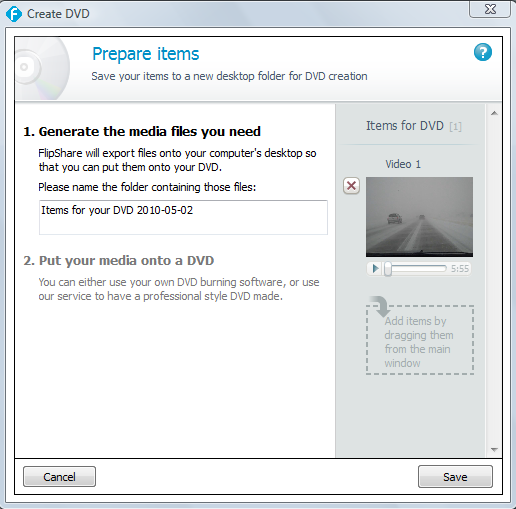
Here is a closer view of the Create DVD menu above. Flipshare will save your Movie in a folder on your desktop.

Next week, we will be reviewing other ways to share your movies through online web sites, and how to work with other compatible softwares. See you next week.

April 11, 2010

The Flip Digital Video Camera Introduction: Part 1


Greetings,

We are all now rested after the long break. I took a break from last week in observance of Easter. We are ready to go again, full speed. I have been looking online for tutorials on the New Flip Digital Camera Software, and so far I am unable to find any. So I decided to create one.

The training on this new digital camera is usually a 6 hour class, so I am going to break it down in my blog into a 5 part series. In the series I will be posting pictures and videos I took with the camera. I will also post helpful video tutorials you can find online. I will also post helpful ideas on how to use your Flip digital camera with your students or for you own personal use. Ok, lets get started.

Here are the titles of the blog session topics I will be following over the next 4 weeks.

Week 1 or Today: Introduction and Session Breakdown

Week 2: Digital Video Cameras in the Classroom

Week 3: How to Use the Pocket Digital Video Camera

Week 4: Working with Video Footage and the Software

Week 5: Using Video Footage with Other Compatible Software

Make sure you let all your colleagues know that I will be continuing with week 2 on this topic next week. For now you might want to visit the web site http://www.theflip.com/ so you can get acquainted with the camera.

I recently saw comedian/singer and celebrity Jaime Foxx using the Flip digital camera at the Grammy award show a few months ago. I think he was recording one of the music acts. They showed him on TV holding up his flip digital camera. If celebrities are finding these cameras easy to use, then we can all learn to use them with ease for our own personal use.

I did a review about this camera a few months ago. If you have not read it, I recommend you read it before you go through this blog tutorial. It can be found by visiting my January 3, 2010 blog post, or you can just click here: The New Flip Camcord Camera by Pure Digital

Next week I will be blogging about how to use the digital video camera in the classroom with students. So don't forget to let all your colleagues know about my free technology blog. See you next week.

February 28, 2010

How to Create a Podcast or Vodcast Part 2 of 3

Hello,
Today I will be covering the following steps:

3. Installing Audio Software to Record Your Podcast
4. Using Audio Software to Record Your Podcast

So, let's get started with installing the audio software.

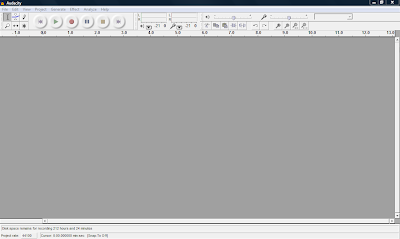
3. Installing Audio Software to Record Your Podcast: You want to use the best possible free software to edit and prepare your podcast. The one I recommend is Audacity. It's free and a very good sound editor. It can be found by clicking on the picture above. Once you go to the site you want to download Audacity 1.2.6 Once you get to the site you will want to choose Audacity 1.2.6 installer and if the download does not begin, choose the option direct link Save the file to your desktop. When you are using the software in Audacity you will need to convert your sound files to an Mp3 and you will need to download the LAME encoder by going to LAME Mp3 Encoder Once you visit the site, you will need to choose the operating system you are using, then click on the LAME download page Toward the bottom of the page you will see the following picture. Click on the appropriate link on the site, and save it to your desktop. Next, you will go to your desktop and double click on the icon and it will ask you to run it, click run and follow the instructions. You will want to remember where you saved it, usually it will be in your Program files menu. Next, double click on the audacity icon on your desktop and you will see the following:

Open Audacity and click on Edit -> Preferences -> File Formats Now this is what you will see. Click on Find Library and follow the instructions. (Here is where you want to find the LAME Mp3 Encoder file, remember it is under Program Files)

4. Using Audio Software to Record Your Podcast: Once you have your software and the Lame Mp3 encoder is installed you are ready to test your microphone. You can either use a headset with a microphone or you can use a microphone and your computer speakers. Plug in your microphone or headset. The microphone is usually the red jack and the headphones is usually the black jack. Go to Start -> Control Panel and double click on Sounds and Audio Devices. Next, click on the Voice tab and click the Test Hardware button. Follow the instructions to test your microphone. For additional tips on settings to make your recordings great visit the following site Great Tips on Recording When you are in Audacity make sure "Microphone" is selected as the recording source in the drop-down menu on the mixer toolbar.

Go to Edit -> Preferences -> On the Audio I/O tab make sure your sound card is selected as the device for playback and recording. In the Channels drop-down box under Recording, choose 1 (Mono). You can use stereo if you want but it will make your file larger and you want to try and keep it as small as possible. Under the Quality tab make sure you choose 44,100Hz as the Default Sample Rate and 16-bit as the Default Sample Format. Under the File Formats tab make sure you choose WAV (Microsoft 16 bit PCM) as the Uncompressed Export Format.

Now you are ready to record. Check on the microphone Meter toolbar in Audacity and you should see a red level indicator moving when you start recording. You can talk into the microphone and make adjustments to the volume until it looks like the picture below.


Now, your almost ready to record. Down below in the picture you will see the featured buttons to start your recording.


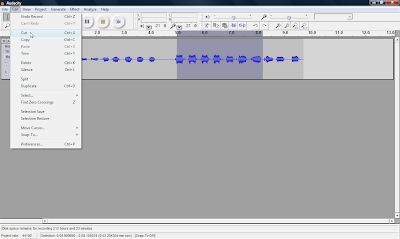
Simply push the Record button and you can start talking. When your done recording press the yellow square button to Stop the recording. If you want to edit your file, where you want to cut out parts of your recording or delete parts. You simply edit out parts by clicking and dragging to highlight the part you want to remove. Select Edit and choose either Cut or Delete. The part you want to edit will turn a grey shaded color. If you want to keep only one section of a recording, highlight that section and select Trim from the Edit menu. Take a look at the picture down below and you will see how to edit your clip.

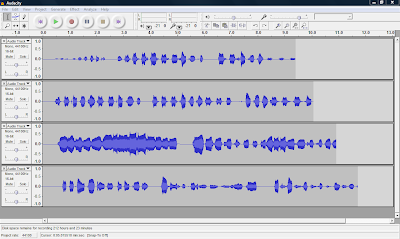
You can also record many multiple tracks to add to your podcast, which is one of the many features you can't do with movie maker 2.Ok, next week I will be talking abou the final steps in your podcast, step 5. Turning your Podcast into a Vodcast and step 6. Publishing and Promoting. I will also be covering how to add music to your podcast and how to convert your WAV file to an MP3 so you can post online. See you next week.
February 21, 2010

How to Create a Podcast or Vodcast Part 1 of 3

Greetings,

Today I am blogging about podcasting and vodcasting. According to wikiipedia, podcasting is defined as a series of digital media files (either audio or video) that are released episodically and downloaded through web syndication. It is a series of digital audio files, usually MP3 that can be downloaded on a regular basis automatically. It's kind of like having your own radio station and you are the broadcaster. Vodcasting or Videocasting is defined as online delivery of video, or using still digital pictures in a video. There are four steps to creating a podcast: plan, produce, publish, and promote. The detailed steps into creating a podcast include the following stages:

1. Planning

2. Gathering Ideas

3. Installing Audio Software to Record Your Podcast

4. Using Audio Software to Record Your Podcast

5. Turning your Podcast into a Vodcast

6. Publishing and Promoting

This blog will break down these steps in a 3 - 4 week blog episode. In this blog episode I will be discussing the first 2 steps. 1. Planning and 2. Gathering Ideas

1. Planning: When you start to create a podcast you need to plan what you are going to say by scripting your words. You might want to have an introduction and a welcome. After you have your script then you can practice recording it. You want it to sound like a radio broadcast or a radio show. When you start a podcast it is important that you continue to create new and regular episodes for your listeners. If you are planning on your students to create podcasts, then you need to monitor the planning process to make sure students are well prepared before recording their podcast.

If you are going to create a podcast or vodcast, and put your students' voices in the project and upload them to the internet, then you are going to need a podcast/vodcast permission slip for their parents to sign. You also want to include a brief detail of what a podcast is, (this will educate the parent) and how only the voices will be used. Now, back to planning your podcast: Here are a few questions you want to ask yourself while you are planning your podcast. What do you want to communicate to your listeners? What do you want your students to communicate in their podcast? How often do you want your students to create a podcast? What do you want to teach your listeners? What type of action do you want your listeners to take during the podcast?

2. Ideas: What topic or idea do you want to share with your listeners? You want to create a 3 -5 minute podcast for your listeners maybe once a week or once every 2 weeks. You want your listeners to always want more from your future podcasts. Here are some additional web sites of sample podcasts:

Elementary Schools:
http://www.kid-cast.com/
Willowdale Elementary School
Wells Elementary School
Jamestown Elementary

Middle Schools:
Harrington Middle School
Mabry Middle School
Twin Valley Middle School

High Schools:
Amphitheater High School
Coral Gables High School
Briggs High School

Educational Podcast Directory You can also go to Itunes and search for student podcasts. You can also go to google and search for podcasts as well. Here is a Podcast Legal Guide you may want to review to make sure you follow all the legal guidelines in podcasting http://wiki.creativecommons.org/Podcasting_Legal_Guide

Here are 25 more ideas that you may want to think about for your podcast or vodcast:
1. Visit http://www.pppst.com/ – This site has thousands of teaching PowerPoints that can be used for Podcasting
2. Talking books
3. Having students read a book
4. Vocabulary lessons
5. Oral tests
6. Test Reviews
7. Spelling lists
8. Pledge Allegiance
9. Numbers and Alphabet songs
10. Recording lectures
11. Introduction to staff
12. Faculty meetings
13. Communications to parents and community
14. Homebound lessons
15. Announcements
16. Lecture notes
17. How to:
a. Check out books in the library
b. How to use the Grade book program
c. Validate grades
d. Fill out forms
e. Do a certain project
18. Book reviews
19. Field trips
20. Student forms
21. Staff Development
22. Dictation
23. Student information
24. Registration information
25. Senior information

Hope these ideas help you out, as you plan your podcast. Next week, I will cover step 3. Installing Audio Software to Record Your Podcast and step 4. Using Audio Software to Record Your Podcast. See you next week.

January 3, 2010

The New Flip Camcord Camera by Pure Digital

Happy New Year!

Greetings Colleagues and Friends,

Today is the day; I know you have all been waiting for the amazing video we shot on my trip to Abilene, TX on Christmas Eve. Remember we were taking a trip from Dallas to Abilene, which is usually a 3 hour trip, but on that day it took us over 9 hours to get to Abilene due to the winter storm we were caught in. Now, I must admit, I drove and my wife shot the video from the front seat while heading west on Interstate 20. I was driving about 20 to 40 miles per hour, until we eventually arrived to a complete stop for about 2-3 hours on the highway. We eventually had to exit near Cisco, TX. I hope you enjoy the winter adventure.


The video was shot with the new Digital Flip Camcord Camera by Pure Digital and I have been asking others about the video we shot and we have been getting great reviews. Remember I said before in an earlier blog that a picture is worth a thousand words. Well, what is a video worth that tells a story? I really like the convenience of just pulling the camera out and pushing the button and capturing video. In fact, it is too easy to shoot video anywhere and at anytime. It is even easier to share the video you just shot with others by replaying it on the screen. By the way, the video was edited in Windows Movie Maker 2.

The camera retails for about $150 and you can find more information on their new HD Flip camera at http://www.theflip.com/ I would recommend this camera, if you do not have an iphone. I personally like the iphone camera, except you have to quickly push a few buttons on the screen to get to it. So, if you are just shooting events, family or friends this camera will make a great addition to all the new tech gadgets that are out. Another thing I like about the flip camera is that on the side you will find a USB connection which you can plug in your USB port in your computer.

One of the great features is that the software and the capability to edit your video clips come with the camera. No CD to load into your computer. The software is built in the camera. That's right! So all you have to do is load the software when you plug it in to any computer. The flip camera lets you record up to 120 minutes, but this has not been a problem since you can unload the clips you shoot on your computer. If I had to improve the camera, I would let flip know to add a light so you can capture shooting at night. I hope you enjoy the film we shot and produced. Stay tuned to more exciting videos in the future.

Package Includes: camcorder, 4 GB built-in flash memory (records up to 120 minutes), 2 AA batteries, tv cable, wrist trap, soft case & quick start guide. You can also buy the optional rechargeable battery pack.

The Digital Video Format: H.264 video and AAC stereo audio in MP4 file format, Video

Resolution: VGA 640 x 480 at 30 frames per second The Minimum Computer System

Requirements Include: PC: 2.0 GHz Intel Pentium 4 or faster processor, Windows XP SP2 with 512 MB or RAM or Vista with 1 GB of RAM, and USB 2.0 port MAC: 1.0GHz PowerPC G4, Intel Core or faster processor, 512 MB of RAM, OS X Tiger 10.4 or Leopard 10.5, and USB 2.0 Port

Next week, I will be talking about how to easily capture pictures or take screen shot pictures in Ms Word. I will also be sharing with you how to edit and crop (cut) the pictures so you can insert them into documents or Power Point presentations. I will also be sharing a few photo sharing sites in which you can post photos for free.