Greetings,
Hope you are doing well. This week I will be discussing a place where you can access free resources within your community. You can get popular DVDs, Cd's, books, and audiobooks at your own local library. It's amazing of the statistics of how many people actually have a library card, it is about 2 - 5% of the population. That's maybe one one out of twenty individuals who have in possession a free library card.
All you have to do is visit your local public library, and search for the resource you are looking for. Once you find your resource then you will need to sign up for a free library card. You can even do a search online in some cases. If they do not have the resource you are looking for, then you can place a request for them to get it through interlibrary loan. They search hundreds of libraries for you throughout the country.
I have received resources from as far as New York, Chicago and Los Angeles to name a few. You may have to wait a few days or weeks. Some of the movies I borrowed recently include the following: Avatar, Julia and Julia, Wall-E, The Power of One from the 1990's, The Karate Kid part 2 and 3 back from the 1980's. A few books and audiobooks I have checked out include books by John Maxwell, John Wooden, Stephen Covey and Eric Jensen to name a few.
Hope this helps you out as you look for the resources you want or need in the future. As summer comes to a close, millions of children will be returning to a new school year within the next month. Over the next two weeks I will be blogging about how to be an effective classroom manager. I will also be sharing with you a few slides of my First Day of School PowerPoint. This is the same PowerPoint that was recently featured in a Presentation by Dr. Harry K. Wong. Hope to see you soon.
Showing posts with label movies. Show all posts
Showing posts with label movies. Show all posts
August 8, 2010
May 2, 2010
Working with Video Footage and the Software: Part 4
Hello,

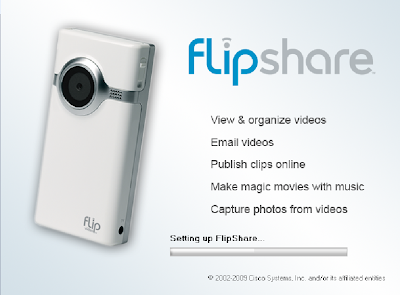
Follow the instructions for installing the software. It may ask you to restart your computer to use the software. Sometimes this is not necessary. Once the software is on your computer you will see the following menu or the videos will automatically start loading in the software.

Here is the second view option that you can choose to work with.


Today, we are discussing how to work with the new video footage you have filmed using your Digital Flip Camcorder. The first thing you need to do is pull on the latch on the side of the camcorder, and the USB Connection will come out. You then plug this into a USB port on your computer.
Once you plug it in you will need to install the software that is inside the camcorder. That's right the software is built inside the Flip Camcorder. No need for an installation disc. When you plug it in, the following menu will come up:
Once you plug it in you will need to install the software that is inside the camcorder. That's right the software is built inside the Flip Camcorder. No need for an installation disc. When you plug it in, the following menu will come up:

You will choose the top option View Your Flip Camcorder Videos Using the Programs Provided on the device. Click OK and then you will see a licensing agreement by flip that you must agree to. Once you agree, you can install the software. Next you will see this menu:

Follow the instructions for installing the software. It may ask you to restart your computer to use the software. Sometimes this is not necessary. Once the software is on your computer you will see the following menu or the videos will automatically start loading in the software.

You can click on the first option View & organize videos, and all your videos will load on the screen, like below or they may load automatically. Most of the clips you will see are from a snow storm we encountered on my way to Abilene, TX. back in December of 2009. For the full edited video please visit: http://mrybarra.blogspot.com/2010/01/new-flip-camera-by-flip.html This is the first view in which you can see the videos lined up on the left side.

Here is the second view option that you can choose to work with.


To edit your videos, simply click on the scissors and you can trim it the way you want. You can also resave your movie with the new edited video.

During the edit process you can chose to resave it or replace the current video.

When you are ready to make your movie, click on either of the Movie buttons down below.

To create your movie, you just click and drag the videos into the boxes that are listed 1st, 2nd and 3rd. Every time you add a video a blank video box will appear in case you want to add more videos to your movie. When you are done you can click on the Magic Movie button and your move will be created automatically or you can click on Full length to continue making your movie.

Next, you can add titles and credits to your movie. Simply click in the white text area and type your title. When you are done click Next

You can also add background music to your movie, if you prefer. The software comes with it's own type of music or you can add your own music.

Now, you are ready to name your movie and save it to your computer. You might want to change the location of where you want to save it. You probably want to save it on your desktop so you can easily find it.

If you go to the create menu, you can also take snapshots of your video. Yes, you can save any part of your video as a picture.

Just click and drag the picture you want and then click on save. It will save it to the Flip Digital Video Library.

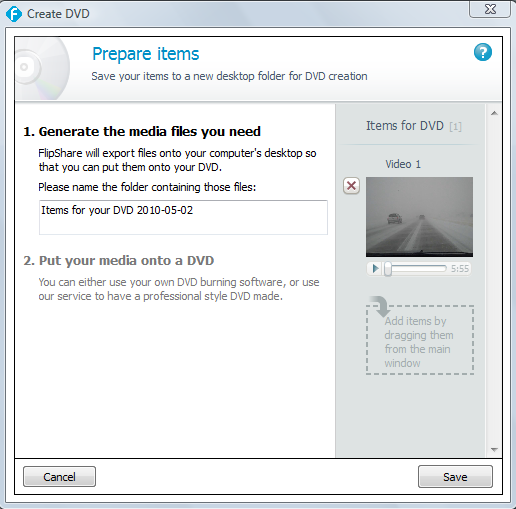
Now, you are ready to create a DVD.

Here is a closer view of the Create DVD menu above. Flipshare will save your Movie in a folder on your desktop.

Next week, we will be reviewing other ways to share your movies through online web sites, and how to work with other compatible softwares. See you next week.


November 29, 2009
Making Professional Movies with Digital Pictures/Videos for Free!
Today, I am going to share with you some valuable resources on how to make free movies or digital stories with your computer. There is a free software program the Microsoft has installed on all computers that have Windows and most people do not even know that this program is on their own computer. The name of this free program is called Windows Movie Maker (2).
So, what do you do with all those digital pictures and videos you have taken over the past holiday? You can turn them into a professional movie by using the program above. To find the program on your computers you click on Start -> Programs -> Accessories or you can find it in your Programs menu. Look for this picture to the left, when you are looking for it.
Now, I can go over the program and explain all the details of how to add pictures, add video, edit, clip, copy, cut, combine full-motion video, still images, narration, music, effects, titles, and transitions to create your own movies or you can learn it for free by viewing the following link through atomiclearning: http://www.atomiclearning.com/moviemaker2 When you click on the link you will watch professional videos on how to use the program step by step. You can watch from the comfort of your own home, then follow along step by step. Hope you enjoy the free tutorials (they are priceless). Here is another tutorial in which you can read step by step on how to use Windows Movie Maker (2): http://www.microsoft.com/windowsxp/using/moviemaker/default.mspx With this program you can also learn about Creating Digital Stories with Windows Movie Maker 2 Just click on the link above and it will take you to the University of Houston web site on Creating Digital Stories. Hope this helps and we will be sharing more and exciting and free info. in the future with you.
So, what do you do with all those digital pictures and videos you have taken over the past holiday? You can turn them into a professional movie by using the program above. To find the program on your computers you click on Start -> Programs -> Accessories or you can find it in your Programs menu. Look for this picture to the left, when you are looking for it.
Now, I can go over the program and explain all the details of how to add pictures, add video, edit, clip, copy, cut, combine full-motion video, still images, narration, music, effects, titles, and transitions to create your own movies or you can learn it for free by viewing the following link through atomiclearning: http://www.atomiclearning.com/moviemaker2 When you click on the link you will watch professional videos on how to use the program step by step. You can watch from the comfort of your own home, then follow along step by step. Hope you enjoy the free tutorials (they are priceless). Here is another tutorial in which you can read step by step on how to use Windows Movie Maker (2): http://www.microsoft.com/windowsxp/using/moviemaker/default.mspx With this program you can also learn about Creating Digital Stories with Windows Movie Maker 2 Just click on the link above and it will take you to the University of Houston web site on Creating Digital Stories. Hope this helps and we will be sharing more and exciting and free info. in the future with you.
Subscribe to:
Posts (Atom)


