Total Pageviews

Showing posts with label students. Show all posts

August 15, 2010

How to be an Effective Teacher: Part 1 of 3

Hello,

Today I will be sharing with you some key concepts and ideas on How to be an Effective and Successful Teacher. I recently had the opportunity to attend Dr. Harry K. Wong's and Dr. Rosemary Wong's keynote presentation on How to be an Effective and Successful Teacher. I have also been collaborating with him over the summer on a few ideas. To see his latest article for August 2010, please double click on the picture below.

Harry K. Wong is possible the most motivating, exciting and dynamic speaker in education today. His presentations result in a positive behavioral effect on his audiences world wide. he leaves his audiences with practical and useful techniques on how to be a successful teacher. He has given more than 3,000 presentations to nearly a half million people in America and Canadian provinces and in South America, Asia, Africa, and Europe.

Dr. Wong's expertise is in classroom management and student motivation. He has been an excellent teacher who has shared his success wit thousands of teacher worldwide. Dr. Wong has won numerous awards and was also featured in a story by Reader's Digest.

During more than 33 years in the classroom, He has developed methods that resulted in having a zero dropout rate, no discipline problems a 95% homework turn-in record, and the ability to demonstrate master level learning by each of his students.

Instructor Magazine (March 2006) announced a reader's poll of the most admired people in the world of education. Harry Wong was on the list along with Maya Angelou, Laura Bush, Bill Cosby, Hillary Clinton, Ron Clark, Marva Collins, Howard Gardner, Mel Levine, and Oprah Winfrey.

Dr. Wong has over 30 publications including the best selling book in the world in Education. He has sold over 3.5 Million books as of 2010. Soon there will be a Chinese and an Arabic Edition; possible a French addition. What's the name of his best selling book? It is called The First Days of School. He also has an award-winning video series, a CD set and an e-Learning course in classroom management. He also writes a monthly column on http://www.teachers.net/wong

What is the secret to be an effective teacher? Here it is get you pen and paper ready. According to Dr. Wong, you steal. Well it's not really called stealing. It's called research. You walk into teachers rooms and you look around and look around for great ideas that you can use in your classroom. It's also called sharing and collaborating with effective teachers.

There is only one way to improve student learning and it is by having an effective teacher. You want to have a positive effect or produce a result with your students. According to Dr. Wong, you need the mastery of the following as a teacher:

1. Excellent Classroom Management Skills (Unit C in book)

2. Lesson Mastery (Unit D in book)

3. Positive Expectations (Unit B in book)

For more information on these key ideas, please refer to the newest edition of The First Days of School, which was published in 2009.

I hope these resources assist you in becoming a great teacher, role model and leader in your school or community. Next week I will be sharing with you parts of my PowerPoint on procedures and routines on the first day of school that was featured in his keynote presentation. I will also be sharing with you the 7 questions students want to know when they walk in your room on the first day of school. Now if you can't wait until next week, you can always refer to the book. See you next week.

Here is part 2 of the article: How to be an Effective Teacher: Part 2 of 3

July 18, 2010

What is the Hat?

Greetings,

Today, I will be blogging about the Hat. The Hat is a random number/name generator you can use with your students. This application makes sure each person is randomly drawn equally. What's neat about this application is once you download it, you do not need to be connected to the internet.

One of the great features of this application are the fun special effects. The generator will make a toggle noise and a drum beat noise as the names are being shuffled and selected. This tool has given me another option to use, besides my traditional popsicle sticks in a cup. The popsicle sticks in a cup still works, except this generator has sound effects and is very visual. This makes it more exciting for the students.

To download this free and fun tool you can visit the following web site: http://www.harmonyhollow.net/hat.shtml
Here is what it looks like after you have downloaded it.

The fist thing you want to do is input the students names manually.


Once you select the Add Names Manually button, you will see the following window screen. You will need to type in your students name to add them to your list.

After you have all the names of your students in your class. You have two choices.

1. You can shuffle the names and the names will jump around from top to bottom to different position. You can either chose the name on the very top of the list or the bottom of the list. Then you can chose to delete the name.

2. You can chose to draw the names randomly out of the Magic Hat. The student will see his or her name appear on the middle part of the hat.

I personally like using the Magic Hat, that way the students are selected randomly to answer questions when I am presenting a lesson to the students. The names can only be chosen one time, so it is a true random sample.


Once you have drawn all the names of the students, you will see an indicator that says all the names have been drawn out. Then you can reshuffle, and continue to draw out the same names randomly.


If you have more classes you can chose to delete the names, clear the list or import the names into the generator.


You can also go into the options setting and change the interface or sound effects if you would like.


I hope you enjoy this fun and useful tool. I know your students will enjoy it. Remember download it and play with it, and you will be ready for your students when you need to ask questions to your students randomly. Hope his helps you out. See you next week.

June 27, 2010

Part 2 of What is IVC?

Greetings,

This week I will be sharing more of the free activities we participated in during the event. Remember you can also participate in these activities with your students. Here are 7 of the most popular ones:

1. Monster Match Exchange

2. Animal Exchange

3. Community Exchange

4. Read Around the Planet

5. Math Marvels

6. Mystery Quest Beaches

7. Whirlidurb: Shane Sings


1. Monster Match Exchange Project: Two classrooms are paired up and each class will have the opportunity to draw their own monster. The first class will communicate or write a description of their monster and post it online. The second class will then get the opportunity to draw a monster that matches the description of the first classroom. Both classes will meet via video conference to compare and contrast the original drawing of their monsters. For more information on this exciting project please visit: www.humbleisd.net/monster/ and http://disdvideoconferencing.pbworks.com/Monster+Exchange

2. Animal Exchange Project: Two classes are paired up and will select an animal that is found in their state or region. Each class will prepare a presentation about an animal to share with the other class. The presentation should be about 5 minutes long and include the habitat, movement, description and what it eats. The presentations may include the following a visual, sound, act out motion/movement, or a song/poem about their animal.Each class can break up into groups and each group will will research the topics listed above. Both classes will meet via video conference to give their description to the other class. Next, both classes will research online what the other classes animal is. Both classes will take turns to meet via video conference to guess the other classes animal.


3. Community Exchange Project: Both classes will prepare a presentation about a community to share with the other class. The presentation should be about 5 minutes, and include visuals. Here are a few ideas that you may want to include in your project: information about demographics of community; cultural institutions, zoos, museums; schools including size, curriculum, structure; a map of the community/city/state; type of food that is popular, favorite sporting events and trivia. After each class presents via video conferencing there will be time for questions and answers.

4. Read Around the Planet Project: This is a project that celebrates National Education Association's Read Across America. Classrooms use interactive video conference to connect with other classrooms "around the planet" and read to each other. The presentation should be about 5 minutes and can be related to reading or promoting literacy. Here are a few ideas that a project may include: skits or plays, raps or songs; puppet show, readers theater, poetry, sign language, illustrations, dramatizations, student-centered books, original poetry, songs and trivia. For more information on this project please visit: www.twice.cc/read

5. Math Marvels Project: Both classes will prepare problem solving and communicating solutions/strategies using higher order thinking skills. Students will create math problems to communicate via video conference to each other to solve. The two classes will use good math problem solving skills and use various strategies/discussions. Students will need to create problems that have an answer of a number before the video conference. After each class has had time to solve the math problem, they will share their response via video conference. For more exciting information about this project, please visit: http://katyvc.pbworks.com/Math-Marvels

6. Mystery Quest Beaches Project: Both classes will prepare a 5 to 7 minute presentation on a mystery beach. Each class may divide researching the clues for their beach. When creating the presentation, students will need to clearly communicate effective clues to the other class via video conference. You may use the following ideas to create clues: region, location and place.

Beach Clues:

Region

1. Describe how land and sea areas define the country's borders.

2. What other landmarks are close to the beach?

Location

1. What is the latitude or longitude of the beach?

2. What is the relative location of this beach?

3. Which direction from the country capitol do you travel to reach the beach?

Place

1. What body of water is closest to the beach?

2. What is the area of the country in which the beach is located?

3. What is the primary language of the country in which the beach is located?

4. What is the population of the country in which the beach is located

5. Name and describe a tourists attraction near your beach and illustrate if possible.

6. What is the population of the nearest city?

7. Describe one or more notable physical landforms in or near this city.

Once all the clues have been communicated from both classes via video conference (30 min.), then the research begins on the Internet (20 min.) to figure out the location of the beach. After all questions are answered, then each group will present their answers to the other class. Both classes will need to create a visual poster with the correct name of their beach. The correct mystery of the beaches will be revealed by students at the end of the video conference.

For more information on this project and to get a notes template, please visit: http://mysteryquest.wikispaces.com/

7. Whirlidurb Project: Introduce video conferencing to you early childhood classes through different animated characters that will be singing and asking them questions. The different animated characters are created with animated avatars that the presenter uses to communicate with your class. Your students will absolutely love this activity. For more information on this program, please visit: http://shanesings.whirlidurb.com/

These were just a few activities and projects you can participate in with video conferencing equipment. I hope you get the opportunity to conduct a virtual field trip or a video conference event with your students. We will see you next week with another exciting topic.


January 31, 2010

How to Turn any Room into a Presentation Room With Your Computer Part 2

Hello,

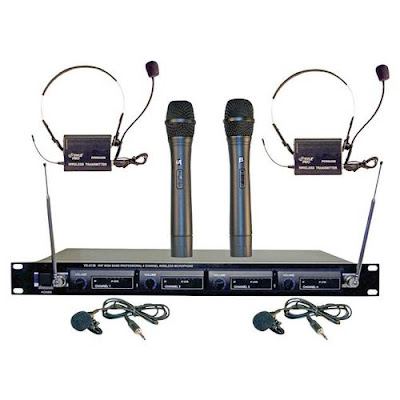
Hope you are all doing well. Today I will be blogging about part 2 on how to turn your room into a presentation room. That's right, I will be giving you my own professional recipe, and also reveal the type of system I am currently using in my classroom. If you look at the picture to the left.  This is the wireless system I am using in the classroom.  This system requires no connection to your computer.

The students are amazed by it, especially when they get to talk on it, or give presentations. Just this past week, elementary students from first to fifth grade were able to hold the wireless microphone, while I used the lavaliere microphone clipped to my tie.  If you are interested in this system click on the picture above.

The students were so excited to hear their own voice over the speakers in my room. Several students were able to ask questions, read the daily objective, and give PowerPoint presentations while using the wireless microphones. I think they really cherished and enjoyed this experience.

The professional VHF wireless microphone comes with 4 wireless microphones. I have been using this system for the past 2 years and it is a pretty good system for students to use. Last year during the end of the school year party we pulled out all four microphones plus another corded one I had, and had a great Karaoke party in my room. The kids really enjoyed the experience to hear their voice amplified through the system. These are just a few uses you can use the system with.

This is a professional VHF wireless system from Pyle that comes with two handheld microphones, two belt pack transmitters that clip on to your belt with lavaliere and headset microphones, power on/standby/off switch, four 9 volt batteries and ¼ audio cable included, RF indicators, AF level meters, individual volume controls, ¼” individual and mixed output, frequency range: VHF 160-270MHz, operation range: up to 240 ft., power supply: 110/220 V Dimensions: 16.5” x 8.2” x 1.8”
Model Number: Pyle Pro PDWM4300


When you look at the picture on the left, you will see the VHF wireless system I am currently using with my students. I also use a corded microphone (not pictured) that you can buy separate. (I use the Memorex brand) I have the headsets put up in my room.

We get the headsets out on special occasions. I have a MPA-30 20 Watt PA amplifier 120V/12V by Radio Shack, which is connected to a little speaker that I place in the center of the room. (By the way, the amplifier, and the speaker were given to me by a close friend of mine, who found out I was using professional microphones in my room.

You see, when you are doing great things in your classroom, people tend to want to help you out!) There are several 20 watt PA amplifiers you can find online, just google them. As I was writing this post I saw some on Ebay, for as little as $10. Also you will need to get some small speakers (not computer speakers) to plug into the back of the amplifier. Once you connect all these together you are ready to use it.

By the way if you go to this site you can see the manufacturer’s manual: http://www.pyleaudio.com/manuals/PDWM4300.pdf The manual will give you even more detail about the system. At the time I was blogging, this professional VHF wireless system retails for about $267. You can check it out from the Manufacturers web site at by clicking on Here. As I said you can build this system for under $200. When I purchased my system I paid around $110.


 Unfortunately the price has gone up. If you are interested in the VHF wireless system, check out the one above to see if these are in your budget. Ok, we will see you next week, coming up in a few weeks you will hear about the podcasting and vodcasting classes I am teaching with a colleague of mine. Talk to you later.

January 24, 2010

How to Turn any Room into a Presentation Room with Your Computer Part 1


Hello,

Today I am blogging about how to set up a microphone PA system in your classroom. You can turn any room into a presentation room by using your computer, and your computer speakers.

 I think teachers should create a Great Experience for their students, and having a microphone, and speakers in their room does that. You can have students give presentations, and they can hear their voice amplified over your speakers. You can teach your students interview skills, and presentations skills. You can also teach them how to defend proposal, and premises in front of the class.

From my experience of visiting different elementary schools, I am finding about less than 1% of the teachers use microphones in their classrooms. So this can be a great way to help your students in having an unforgettable experience that they will never forget, while teaching them presentation skills at a young age.

It is as easy as connecting a microphone to the back of your computer through your sound card. You want to make sure you have computer speakers connected to your computer, so the sound can come through them. As you can see in the picture, you connect the round metal tip to the back of your sound card. At the end of the cord, it is usually color coded to match the color of your jack input in your soundcard. If it is not, then you are looking for an imprint or picture of a microphone on the back of your sound card.

Your other options are to buy a USB Microphone and just plug in the Microphone into a USB port. Many USB Microphones come with software you have to install before you connect the microphone to the computer. Once you do this, then all you have to do is to go into your sound and audio devices in your settings on your computer to turn on the microphone. To do this you have to left click on your green start button on the bottom left side of your computer screen. There are two views you could be using on your computer. (To enlarge the pictures you need to rapidly double click the pictures with the left side of the mouse)

The first view is the classic start menu and the second view is the new start menu. Let’s go over the first one, the classic start menu. Older computers have this menu and it looks like this Click on control panel and you are looking for an icon that says Sounds and Audio Devices Once you find it, rapidly double click with the left side of the mouse and you will see a menu like this

The second view is the newest view for Windows XP, Vista, and Windows 7. Left click on the green start button on the bottom left of your screen. You are now looking for this button on the right side of the start menu. You will need to left click on the control panel button. Next, you will see this menu You will need to rapidly double click with the left side of the mouse on the Sounds, Speech and Audio Devices. This is the next menu you will see after you have opened up your Sounds and Audio Devices Options. You will be on the sounds tab button. You can place a check by the Place volume icon in the taskbar and then you want to click the button below that Advanced and you will see a menu like this You will want to uncheck the box that says Mute under the button that says Microphone, so you can hear sound coming out of your microphone. Do not worry about the other checks. You can close the Playback Control box and close the Sounds and Audio Devices Menu. You should now be able to talk with your microphone and hear the voice sounds projecting through your computer speakers.

Hope this helps if you have any other challenges while setting this up, please visit this following resource site: http://atr.k12.hi.us/tutorials/tutorials/sound/soundpt1.htm#one We will see you next week with part 2 on how to create set up a four professional wireless microphone system in your room for under $200. That's right I will be giving you all the details of where I purchased my professional wireless microphone system fron under $100. See you next week!

December 20, 2009

Tell the Whole World!

If a picture is worth a thousand words, then what is a talking picture worth? This week I am introducing a new web site that lets you turn any picture into a talking picture. That’s right, a regular picture into a talking picture. All you have to do is click on the picture to the left or click on the following link: http://www.blabberize.com/ Just like the picture says, it only takes 30 seconds. It's fast, easy and also fun to use. How would you like to use this tool to teach the students a concept or an idea from a talking picture?Your students or audience will love it. You can also put it in presentations or entertain your audience to make a point. Hope you have fun playing with it and we will see you next week.