Total Pageviews

Showing posts with label download. Show all posts

July 18, 2010

What is the Hat?

Greetings,

Today, I will be blogging about the Hat. The Hat is a random number/name generator you can use with your students. This application makes sure each person is randomly drawn equally. What's neat about this application is once you download it, you do not need to be connected to the internet.

One of the great features of this application are the fun special effects. The generator will make a toggle noise and a drum beat noise as the names are being shuffled and selected. This tool has given me another option to use, besides my traditional popsicle sticks in a cup. The popsicle sticks in a cup still works, except this generator has sound effects and is very visual. This makes it more exciting for the students.

To download this free and fun tool you can visit the following web site: http://www.harmonyhollow.net/hat.shtml
Here is what it looks like after you have downloaded it.

The fist thing you want to do is input the students names manually.


Once you select the Add Names Manually button, you will see the following window screen. You will need to type in your students name to add them to your list.

After you have all the names of your students in your class. You have two choices.

1. You can shuffle the names and the names will jump around from top to bottom to different position. You can either chose the name on the very top of the list or the bottom of the list. Then you can chose to delete the name.

2. You can chose to draw the names randomly out of the Magic Hat. The student will see his or her name appear on the middle part of the hat.

I personally like using the Magic Hat, that way the students are selected randomly to answer questions when I am presenting a lesson to the students. The names can only be chosen one time, so it is a true random sample.


Once you have drawn all the names of the students, you will see an indicator that says all the names have been drawn out. Then you can reshuffle, and continue to draw out the same names randomly.


If you have more classes you can chose to delete the names, clear the list or import the names into the generator.


You can also go into the options setting and change the interface or sound effects if you would like.


I hope you enjoy this fun and useful tool. I know your students will enjoy it. Remember download it and play with it, and you will be ready for your students when you need to ask questions to your students randomly. Hope his helps you out. See you next week.

July 11, 2010

What is Cool Timer?

Greetings,

Hopefully you had a great Fourth of July spending time with family and friends. This week I am sharing with you a timer you can download to use as a stopwatch or a count down timer with your students. All you need to do is visit the following site to download it for free: www.harmonyhollow.net/cool_timer.shtml

Once you download it you will not need an internet connection to run the program. Here is a screen shot of what it looks like, once you have downloaded it.

Your students will enjoy watching the countdown timer when they are in working in small groups, or independent practice. After you have downloaded the program, you can choose different built in alarm sounds to sound off when the time expires. You can even personalize the timer by having a short message scroll across the screen.


Another feature on this free timer is you can change the colors of the digits, buttons, and backgrounds to match your needs.

You and your students will enjoy all these unique features on this free timer. Hope you enjoy this tool. I would recommend you downloading this program to your home computer so you can play with it. Once you have learned all the different features I mentioned above, you will be ready to download it your computer at school.

Next week I will be sharing with you a fun random number generator you can use with your students to make sure they are picked randomly when you ask them questions. Yes, you can even type their name in the random generator to personalize it. See you next week.

May 16, 2010

What is Scribd and SlideShare?

Greetings,

Today I am excited to share with you Scribd.com and SlideShare.com in greater details. These are both web sites where you can download or share valuable resources. Ok, let's get started with Scribd.com. If you click on the picture below, it will take you to the website.


Check out Scribd 101
or you can watch the video below.


Remember, if you are interested in creating your own blog, and publishing your own blog, it is as easy as clicking on this link below to get the instructions. http://mikejmoran.typepad.com/visual_media/2009/11/creating-a-blog-using-blogger.html or you can click on this link below to see the document http://www.scribd.com/doc/22339943/Creating-a-Blog-in-Blogger If you want to download the power point or PDF then you can become a member of http://www.scribd.com/ for free and download all types of free informational documents. You can post any online document to share with the community. You can also charge for people to download your document and you keep 80% of profit.

Now we are ready to talk about SlideShare. Slideshare is a web site where you can also download free resources.
If you click on the picture below, it will take you to SlideShare.


Check out SlideShare 101
or you can watch the video below.


Stay tuned for next week. I will be sharing with you how to download YouTube videos for your next presentation. Videos are always useful and helpful in getting your point across to your audience. See you next week.

February 28, 2010

How to Create a Podcast or Vodcast Part 2 of 3

Hello,
Today I will be covering the following steps:

3. Installing Audio Software to Record Your Podcast
4. Using Audio Software to Record Your Podcast

So, let's get started with installing the audio software.

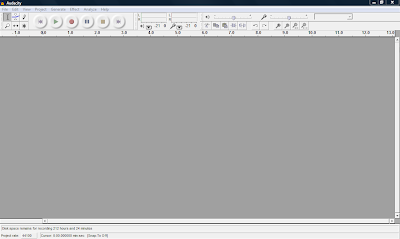
3. Installing Audio Software to Record Your Podcast: You want to use the best possible free software to edit and prepare your podcast. The one I recommend is Audacity. It's free and a very good sound editor. It can be found by clicking on the picture above. Once you go to the site you want to download Audacity 1.2.6 Once you get to the site you will want to choose Audacity 1.2.6 installer and if the download does not begin, choose the option direct link Save the file to your desktop. When you are using the software in Audacity you will need to convert your sound files to an Mp3 and you will need to download the LAME encoder by going to LAME Mp3 Encoder Once you visit the site, you will need to choose the operating system you are using, then click on the LAME download page Toward the bottom of the page you will see the following picture. Click on the appropriate link on the site, and save it to your desktop. Next, you will go to your desktop and double click on the icon and it will ask you to run it, click run and follow the instructions. You will want to remember where you saved it, usually it will be in your Program files menu. Next, double click on the audacity icon on your desktop and you will see the following:

Open Audacity and click on Edit -> Preferences -> File Formats Now this is what you will see. Click on Find Library and follow the instructions. (Here is where you want to find the LAME Mp3 Encoder file, remember it is under Program Files)

4. Using Audio Software to Record Your Podcast: Once you have your software and the Lame Mp3 encoder is installed you are ready to test your microphone. You can either use a headset with a microphone or you can use a microphone and your computer speakers. Plug in your microphone or headset. The microphone is usually the red jack and the headphones is usually the black jack. Go to Start -> Control Panel and double click on Sounds and Audio Devices. Next, click on the Voice tab and click the Test Hardware button. Follow the instructions to test your microphone. For additional tips on settings to make your recordings great visit the following site Great Tips on Recording When you are in Audacity make sure "Microphone" is selected as the recording source in the drop-down menu on the mixer toolbar.

Go to Edit -> Preferences -> On the Audio I/O tab make sure your sound card is selected as the device for playback and recording. In the Channels drop-down box under Recording, choose 1 (Mono). You can use stereo if you want but it will make your file larger and you want to try and keep it as small as possible. Under the Quality tab make sure you choose 44,100Hz as the Default Sample Rate and 16-bit as the Default Sample Format. Under the File Formats tab make sure you choose WAV (Microsoft 16 bit PCM) as the Uncompressed Export Format.

Now you are ready to record. Check on the microphone Meter toolbar in Audacity and you should see a red level indicator moving when you start recording. You can talk into the microphone and make adjustments to the volume until it looks like the picture below.


Now, your almost ready to record. Down below in the picture you will see the featured buttons to start your recording.


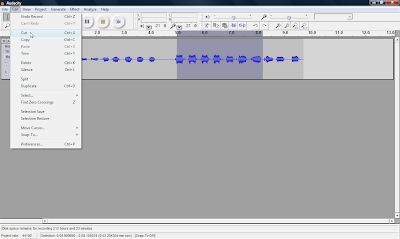
Simply push the Record button and you can start talking. When your done recording press the yellow square button to Stop the recording. If you want to edit your file, where you want to cut out parts of your recording or delete parts. You simply edit out parts by clicking and dragging to highlight the part you want to remove. Select Edit and choose either Cut or Delete. The part you want to edit will turn a grey shaded color. If you want to keep only one section of a recording, highlight that section and select Trim from the Edit menu. Take a look at the picture down below and you will see how to edit your clip.

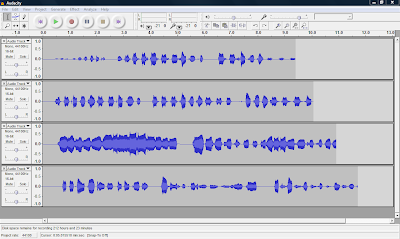
You can also record many multiple tracks to add to your podcast, which is one of the many features you can't do with movie maker 2.Ok, next week I will be talking abou the final steps in your podcast, step 5. Turning your Podcast into a Vodcast and step 6. Publishing and Promoting. I will also be covering how to add music to your podcast and how to convert your WAV file to an MP3 so you can post online. See you next week.
February 14, 2010

Free Resources You Can Download and Use in Your Classroom!

Greetings Colleagues,

Today I am blogging about a Great web site where you can find free, and valuable resources that other teachers have created and posted. You can sign up and join the community for free. When you sign up, you can search for all types of Microsoft Word, Excel, and Power Point documents, as well as pdf's. You will find many forms on classroom management, behavioral reward systems and behavioral contracts. I personally have searched the site for many useful documents that I have shared with other teachers. Just click on the picture to the left of this post to get started. Here is a list of 10 additional resources you will find on the site:

1. Beginning Teacher & Professional Development
2. Teaching Practices
3. Classroom Management
4. Managing Student Centers
5. Homework Ideas
6. Writing Ideas
7. Seasonal and Holiday Ideas
8. Science, Social Studies, Math, Reading, Language Arts Ideas
9. Technology Ideas
10. Visual and Performing Arts Ideas

Hope you enjoy the site. This is probably one of the most comprehensive collections of helpful documents I have found. When you get a chance, sign up for a free account and search for many ideas that you can use in your classroom. Hope this helps. Next week I will be blogging about podcasting and vodcasting. See you next week.


November 22, 2009

Power Point Resources - Free!


Greetings:

Today, I am sharing a wonderful web site that has hundreds of pre-made power points you can use with your students. You can also download them to your computer or a flash drive/jump drive or a portable hard drive. Here is the web site. http://www.pppst.com/

If you are interested in creating your own blog, it is as easy as clicking on this link below to get the instructions. http://mikejmoran.typepad.com/visual_media/2009/11/creating-a-blog-using-blogger.html or you can click on this link below to see the document http://www.scribd.com/doc/22339943/Creating-a-Blog-in-Blogger If you want to download the power point or PDF then you can become a member of http://www.scribd.com/ for free and download all types of free informational documents. You can post any online document to share with the community. You can also charge for people to download your document and you keep 80% of profit. Happy exploring, and we hope you will enjoy the web sites. More valuable resources to come in the future, so stay tuned.