Greetings,
I Hope you had a great week. I know we had a great first week of school at our school. This is the final part on how to be an effective teacher from Dr. Harry K. Wong's keynote speech. I have been receiving a lot of feedback on my First Day of School PowerPoint I shared last week. Today I will be sharing all the different types of procedures and routines that you need to teach your children throughout the year. These can also be found in Dr. Harry K. Wong's Book: The First Days of School in Chapter 19.
Entering the classroom
Getting to work immediately
Listening to and responding to questions
Participating in class discussions
Keeping your desk orderly
Checking out classroom materials
Indicating whether or not you understand
Coming to attention
Working cooperatively
Changing groups
Working in centers
Keeping your notebook
Going to the office
Knowing the schedule for the day or class
Keeping a progress report
Finding directions for each assignment
Passing in papers
Exchanging papers
Returning student work
Getting materials without disturbing others
Handing out playground materials
Moving about the room
Going to the library or tech center
How to head your paper
Returning to a task after an interruption
Asking a question
Walking in the hall during class time
Which side of the hall to walk on
Responding to the following: fire drill, tornado drill, lock down (when a stranger is in the building)
Saying "thank you"
When you are late or tardy
End of period class dismissal
When you need a pencil or paper
When you are absent
When you need help or conferencing
When you finish early
When visitors are in the classroom
If the teacher is out of the classroom
If you are suddenly ill
Remember there is a procedure for teaching a procedure.
The Three-Steps Approach to Teaching Classroom Procedures (Ch. 20 in First Days of School)
1. Teach -State, explain, model, and demonstrate the procedure.
2. Rehearse - Rehearse and practice the procedures under your supervision.
3. Reinforce - Reteach, rehearse, practice, and reinforce the procedure until it becomes student habit of routine.
The last concept on how to be a very effective teacher is to have very high expectations for you and your students. You want to create an effect on you and then on your students. Positive expectations is the key. Believe in your students and when they say "I can't" point out to your students it means they are not trying.
I Hope these ideas on procedures and routines help you out during the school year. Next week I will be sharing with you the exciting trainings I have been involved in over this past summer. I had the opportunity to take over $11,000 of advanced technology training classes and receive 25 books for free. Find out how next week. See you next week.
Showing posts with label classroom. Show all posts
Showing posts with label classroom. Show all posts
August 29, 2010
August 22, 2010
How to be an Effective Teacher: Part 2 of 3
Greetings,
I know a lot of you are excited as the students return to school on Monday. I know you have all been patiently waiting for me to share my PowerPoint on procedures and routines on the first day of school. Remember this was featured in Dr. Harry K. Wong's keynote presentation all around the United States.
First let me share with you the 7 questions that student will have when they enter your classroom. The following information below was from my notes from the Keynote Address. You can find more of Dr. Harry K. Wong's resources below:
1. Am I in the right room?
This gives them a sense of security to know they are in the right place.
2. Where am I suppose to sit?
This lets them know I want you here and I am inviting you into my classroom and I have planned for you.
3. What are the rules in this classroom?
This helps the classroom run more smoothly.
4. What will I be doing this year?
This is your chance to sell what it is they will be learning this year. Create excitement for your classroom for the upcoming school year.
5. How will I be graded?
What is your grading policy? Let them know what it is they need to do to earn a grade in your classroom.
6. Who is my teacher as a person?
Let the students know something about you and they will have a better time relating to you. Tell them what you like, collect or any hobbies or interests you have. Tell them about yourself. If you do not do this, then they will be inventing things about you.
7. Will my teacher treat me fairly?
Yes I will treat you fair, but your definition of fair may not be the same as mine.
My PowerPoint on classroom procedures and routines is located below. All you have to do is click on the picture below and you can download it and save it. I hope these ideas help you be the best teacher you can be.

Once again, I hope these ideas I have shared with you help you out. I hope you have a great first day of school and I will see you next week. For more PowerPoints from other successful teachers please visit http://www.teachers.net/
Here is part 3 of the article: How to be an Effective Teacher: Part 3 of 3
I know a lot of you are excited as the students return to school on Monday. I know you have all been patiently waiting for me to share my PowerPoint on procedures and routines on the first day of school. Remember this was featured in Dr. Harry K. Wong's keynote presentation all around the United States.
First let me share with you the 7 questions that student will have when they enter your classroom. The following information below was from my notes from the Keynote Address. You can find more of Dr. Harry K. Wong's resources below:
1. Am I in the right room?
This gives them a sense of security to know they are in the right place.
2. Where am I suppose to sit?
This lets them know I want you here and I am inviting you into my classroom and I have planned for you.
3. What are the rules in this classroom?
This helps the classroom run more smoothly.
4. What will I be doing this year?
This is your chance to sell what it is they will be learning this year. Create excitement for your classroom for the upcoming school year.
5. How will I be graded?
What is your grading policy? Let them know what it is they need to do to earn a grade in your classroom.
6. Who is my teacher as a person?
Let the students know something about you and they will have a better time relating to you. Tell them what you like, collect or any hobbies or interests you have. Tell them about yourself. If you do not do this, then they will be inventing things about you.
7. Will my teacher treat me fairly?
Yes I will treat you fair, but your definition of fair may not be the same as mine.
My PowerPoint on classroom procedures and routines is located below. All you have to do is click on the picture below and you can download it and save it. I hope these ideas help you be the best teacher you can be.
Once again, I hope these ideas I have shared with you help you out. I hope you have a great first day of school and I will see you next week. For more PowerPoints from other successful teachers please visit http://www.teachers.net/
Here is part 3 of the article: How to be an Effective Teacher: Part 3 of 3


July 18, 2010
What is the Hat?
Greetings,
Today, I will be blogging about the Hat. The Hat is a random number/name generator you can use with your students. This application makes sure each person is randomly drawn equally. What's neat about this application is once you download it, you do not need to be connected to the internet.
One of the great features of this application are the fun special effects. The generator will make a toggle noise and a drum beat noise as the names are being shuffled and selected. This tool has given me another option to use, besides my traditional popsicle sticks in a cup. The popsicle sticks in a cup still works, except this generator has sound effects and is very visual. This makes it more exciting for the students.
To download this free and fun tool you can visit the following web site: http://www.harmonyhollow.net/hat.shtml
Here is what it looks like after you have downloaded it.
Today, I will be blogging about the Hat. The Hat is a random number/name generator you can use with your students. This application makes sure each person is randomly drawn equally. What's neat about this application is once you download it, you do not need to be connected to the internet.
One of the great features of this application are the fun special effects. The generator will make a toggle noise and a drum beat noise as the names are being shuffled and selected. This tool has given me another option to use, besides my traditional popsicle sticks in a cup. The popsicle sticks in a cup still works, except this generator has sound effects and is very visual. This makes it more exciting for the students.
To download this free and fun tool you can visit the following web site: http://www.harmonyhollow.net/hat.shtml
Here is what it looks like after you have downloaded it.
 The fist thing you want to do is input the students names manually.
Once you select the Add Names Manually button, you will see the following window screen. You will need to type in your students name to add them to your list. After you have all the names of your students in your class. You have two choices.
1. You can shuffle the names and the names will jump around from top to bottom to different position. You can either chose the name on the very top of the list or the bottom of the list. Then you can chose to delete the name.
2. You can chose to draw the names randomly out of the Magic Hat. The student will see his or her name appear on the middle part of the hat.
I personally like using the Magic Hat, that way the students are selected randomly to answer questions when I am presenting a lesson to the students. The names can only be chosen one time, so it is a true random sample.
Once you have drawn all the names of the students, you will see an indicator that says all the names have been drawn out. Then you can reshuffle, and continue to draw out the same names randomly.

If you have more classes you can chose to delete the names, clear the list or import the names into the generator.

You can also go into the options setting and change the interface or sound effects if you would like.

I hope you enjoy this fun and useful tool. I know your students will enjoy it. Remember download it and play with it, and you will be ready for your students when you need to ask questions to your students randomly. Hope his helps you out. See you next week.
April 11, 2010
The Flip Digital Video Camera Introduction: Part 1

Greetings,
We are all now rested after the long break. I took a break from last week in observance of Easter. We are ready to go again, full speed. I have been looking online for tutorials on the New Flip Digital Camera Software, and so far I am unable to find any. So I decided to create one.
The training on this new digital camera is usually a 6 hour class, so I am going to break it down in my blog into a 5 part series. In the series I will be posting pictures and videos I took with the camera. I will also post helpful video tutorials you can find online. I will also post helpful ideas on how to use your Flip digital camera with your students or for you own personal use. Ok, lets get started.
Here are the titles of the blog session topics I will be following over the next 4 weeks.
Week 1 or Today: Introduction and Session Breakdown
Week 2: Digital Video Cameras in the Classroom
Week 3: How to Use the Pocket Digital Video Camera
Week 4: Working with Video Footage and the Software
Week 5: Using Video Footage with Other Compatible Software
Make sure you let all your colleagues know that I will be continuing with week 2 on this topic next week. For now you might want to visit the web site http://www.theflip.com/ so you can get acquainted with the camera.
I recently saw comedian/singer and celebrity Jaime Foxx using the Flip digital camera at the Grammy award show a few months ago. I think he was recording one of the music acts. They showed him on TV holding up his flip digital camera. If celebrities are finding these cameras easy to use, then we can all learn to use them with ease for our own personal use.
I did a review about this camera a few months ago. If you have not read it, I recommend you read it before you go through this blog tutorial. It can be found by visiting my January 3, 2010 blog post, or you can just click here: The New Flip Camcord Camera by Pure Digital
Next week I will be blogging about how to use the digital video camera in the classroom with students. So don't forget to let all your colleagues know about my free technology blog. See you next week.
We are all now rested after the long break. I took a break from last week in observance of Easter. We are ready to go again, full speed. I have been looking online for tutorials on the New Flip Digital Camera Software, and so far I am unable to find any. So I decided to create one.
The training on this new digital camera is usually a 6 hour class, so I am going to break it down in my blog into a 5 part series. In the series I will be posting pictures and videos I took with the camera. I will also post helpful video tutorials you can find online. I will also post helpful ideas on how to use your Flip digital camera with your students or for you own personal use. Ok, lets get started.
Here are the titles of the blog session topics I will be following over the next 4 weeks.
Week 1 or Today: Introduction and Session Breakdown
Week 2: Digital Video Cameras in the Classroom
Week 3: How to Use the Pocket Digital Video Camera
Week 4: Working with Video Footage and the Software
Week 5: Using Video Footage with Other Compatible Software
Make sure you let all your colleagues know that I will be continuing with week 2 on this topic next week. For now you might want to visit the web site http://www.theflip.com/ so you can get acquainted with the camera.
I recently saw comedian/singer and celebrity Jaime Foxx using the Flip digital camera at the Grammy award show a few months ago. I think he was recording one of the music acts. They showed him on TV holding up his flip digital camera. If celebrities are finding these cameras easy to use, then we can all learn to use them with ease for our own personal use.
I did a review about this camera a few months ago. If you have not read it, I recommend you read it before you go through this blog tutorial. It can be found by visiting my January 3, 2010 blog post, or you can just click here: The New Flip Camcord Camera by Pure Digital
Next week I will be blogging about how to use the digital video camera in the classroom with students. So don't forget to let all your colleagues know about my free technology blog. See you next week.
January 31, 2010
How to Turn any Room into a Presentation Room With Your Computer Part 2
 Hello,
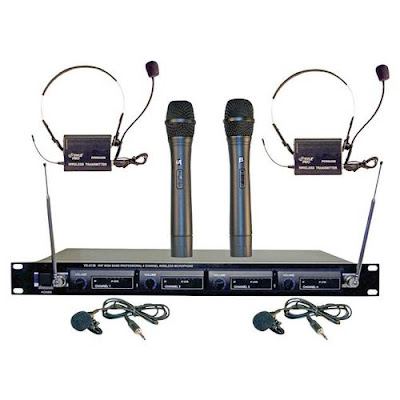
Hope you are all doing well. Today I will be blogging about part 2 on how to turn your room into a presentation room. That's right, I will be giving you my own professional recipe, and also reveal the type of system I am currently using in my classroom. If you look at the picture to the left. This is the wireless system I am using in the classroom. This system requires no connection to your computer.
The students are amazed by it, especially when they get to talk on it, or give presentations. Just this past week, elementary students from first to fifth grade were able to hold the wireless microphone, while I used the lavaliere microphone clipped to my tie. If you are interested in this system click on the picture above.
The students were so excited to hear their own voice over the speakers in my room. Several students were able to ask questions, read the daily objective, and give PowerPoint presentations while using the wireless microphones. I think they really cherished and enjoyed this experience.
The professional VHF wireless microphone comes with 4 wireless microphones. I have been using this system for the past 2 years and it is a pretty good system for students to use. Last year during the end of the school year party we pulled out all four microphones plus another corded one I had, and had a great Karaoke party in my room. The kids really enjoyed the experience to hear their voice amplified through the system. These are just a few uses you can use the system with.
This is a professional VHF wireless system from Pyle that comes with two handheld microphones, two belt pack transmitters that clip on to your belt with lavaliere and headset microphones, power on/standby/off switch, four 9 volt batteries and ¼ audio cable included, RF indicators, AF level meters, individual volume controls, ¼” individual and mixed output, frequency range: VHF 160-270MHz, operation range: up to 240 ft., power supply: 110/220 V Dimensions: 16.5” x 8.2” x 1.8”
Model Number: Pyle Pro PDWM4300
 When you look at the picture on the left, you will see the VHF wireless system I am currently using with my students. I also use a corded microphone (not pictured) that you can buy separate. (I use the Memorex brand) I have the headsets put up in my room.
 We get the headsets out on special occasions. I have a MPA-30 20 Watt PA amplifier 120V/12V by Radio Shack, which is connected to a little speaker that I place in the center of the room. (By the way, the amplifier, and the speaker were given to me by a close friend of mine, who found out I was using professional microphones in my room.
You see, when you are doing great things in your classroom, people tend to want to help you out!) There are several 20 watt PA amplifiers you can find online, just google them. As I was writing this post I saw some on Ebay, for as little as $10. Also you will need to get some small speakers (not computer speakers) to plug into the back of the amplifier. Once you connect all these together you are ready to use it.
By the way if you go to this site you can see the manufacturer’s manual: http://www.pyleaudio.com/manuals/PDWM4300.pdf The manual will give you even more detail about the system. At the time I was blogging, this professional VHF wireless system retails for about $267. You can check it out from the Manufacturers web site at by clicking on Here. As I said you can build this system for under $200. When I purchased my system I paid around $110.
Unfortunately the price has gone up. If you are interested in the VHF wireless system, check out the one above to see if these are in your budget. Ok, we will see you next week, coming up in a few weeks you will hear about the podcasting and vodcasting classes I am teaching with a colleague of mine. Talk to you later.
Subscribe to:
Posts (Atom)


