Total Pageviews

Showing posts with label add video. Show all posts

May 16, 2010

What is Scribd and SlideShare?

Greetings,

Today I am excited to share with you Scribd.com and SlideShare.com in greater details. These are both web sites where you can download or share valuable resources. Ok, let's get started with Scribd.com. If you click on the picture below, it will take you to the website.


Check out Scribd 101
or you can watch the video below.


Remember, if you are interested in creating your own blog, and publishing your own blog, it is as easy as clicking on this link below to get the instructions. http://mikejmoran.typepad.com/visual_media/2009/11/creating-a-blog-using-blogger.html or you can click on this link below to see the document http://www.scribd.com/doc/22339943/Creating-a-Blog-in-Blogger If you want to download the power point or PDF then you can become a member of http://www.scribd.com/ for free and download all types of free informational documents. You can post any online document to share with the community. You can also charge for people to download your document and you keep 80% of profit.

Now we are ready to talk about SlideShare. Slideshare is a web site where you can also download free resources.
If you click on the picture below, it will take you to SlideShare.


Check out SlideShare 101
or you can watch the video below.


Stay tuned for next week. I will be sharing with you how to download YouTube videos for your next presentation. Videos are always useful and helpful in getting your point across to your audience. See you next week.

May 9, 2010

Using Video Footage with Other Compatible Software: Part 5

Greetings,

Today we will be reviewing other ways to share your movies through online web sites, and how to work with other compatible software programs. Ok, we will start with the share menu option at the bottom of the menu it looks like this:


When you click on the Email option you will see this menu:


All you have to do is drag your video to the box and follow the prompts on the screen to email your video to your family and friends. You can also have your own flip channel


You can also share your videos online on the following web sites below. Just drag the video to the box and follow the prompts. If you choose the option, other web sites it will allow you to export it to a folder on your desktop.

When you are exporting your video, you will see the action bar light up on the bottom right. You will see a light blue bar and it will move from left to right, depending on how long your movie is. Once it is finished your movie will be in MPEG format.


If you want to convert it into an avi, wmv, flv or swf you need to use a media file converter. You can get a free one at www.formatoz.com/download.html Once you download it, you will see the following options: (Remember to click on the picture to see a larger version)


Choose your file format options on the left side and follow the instructions and the program will convert your file for you. If you want to edit your files in Windows Movie Maker 2, you want to change the file format to wmv. You can add your movie to MS Office PowerPoint 2007. You can also edit your still pictures in PhotoStory 3 if you wish.
Let's get started with how to import your video in Windows Movie Maker 2. Just follow these simple steps.
1. Open Windows Movie Maker 2, it is under Start ->Program Files menu.
2. On the file menu on the top left, click Import Into Collections or in the movie task pane under Capture Video, click import video or import pictures. In the file name, enter the path and the name of the file you want to import, and then click import.
To add your movie to MS Office PowerPoint 2007, follow these steps:
1. Make sure you copy your movie in the same folder as your PowerPoint presentation before you add the movie to your presentation.
2. Click on the slide you want to show your movie on.
3. On the Insert tab, in the Media Clips group, click the arrow under Movie.
4. Click Movie from File, locate the folder that contains the file, and then double-click the file.
To insert a picture
1. Click on the slide you want your picture on.
2. On the Insert tab click on picture.
3. An insert picture window will appear, locate the folder that contains the file and then double-click the file you want to add.
If you don't have Photo Story 3, it's a free download, click here Simply follow these steps to Import and arrange your pictures.
1. On the Import and picture page, click Import Pictures.
2. In the File Browser dialog box, on the All Files tab, click the folder where your pictures are located on your computer. Select one or more pictures, then click ok.
3. Your pictures will be added to your Photo Story project.

If you don't know how to use Movie Maker 2 or Photo Story 3 simply go to google and type the following: "Movie Maker tutorial" or "photo story 3 tutorial." I Hope these blogs have been helpful in assisting you in using the new Flip Digital Camcorder.

Next week, I will be blogging about slideshare and scribd. These are web sites where you can sign up for free, and download and share your own resources with others.  I will see you next week with another exciting topic.

April 25, 2010

How to Use the Pocket Digital Video Camera: Part 3


Greetings,

Today we are going over all the parts of the Flip Digital Pocket Video Camera, including the basic operations. Listed below are the Camcorder features. To see the picture up close, just double click on the picture below.

Basic Operations:
Recording Videos:
1. Press the Red Record button to start and stop.
2. Press Up/Down buttons to Zoom in/Out.

Playing Videos:
1. Press Play button to Start and Stop.
2. Press left/right buttons to view previous/next.

Deleting Videos:
1. Display the first from of the footage to be deleted.
2. Press the Trashcan button.
3. Press Yes to confirm.

For a great breakdown on the Camcorder basics, please see the video below.


Various Shots:

Wide shot: Establishes the scene.

Medium shot: Give more intimacy and focuses on one subject at a time.

Close Up: For emotion and direct connection to what is happening in the scene.

Extreme close up: Very close and personal, intimate and has an emotional effect to it.

For great video shooting tips with the Camcorder, please view the video below.


If you visit the following web site: www.flipvideospotlight.com/resources/storytelling.aspx you will get more information on storytelling, shooting, video production and distribution.

The camcorder comes with a step by step guide, instructions, strap, A/V cable, software and media are built in the camera. Additional items you can purchase include the rechargeable battery pack. If you invest in the rechargeable battery pack, you simply plug your camcorder in the computer to recharge it.

The specifications on the Camcorder are listed below:

Internal Memory: 4GB (120 minutes)

Screen Size: 2.0 (transflective TFT)

Screen Resolution: 960 x240 pixels

Video Resolution: 640 x 480 pixels

Frame Rate: 30 frames per second (constant frame rate, progressive scan)

Video Bitrate 4.0Mbps (average auto adaptive algorithm)

Video Format: H.264 video compression, AAC audio compression (Ipod ready), saves as MP4 file

Lens Type: Smooth multi-step 2x digital

Aperture: f/2.4 (fast lens for great results in low-light environments)

Zoom: Smooth multi-step 2x digital

Interface: 8 Buttons (Power, Play, Delete, Record and 4 way navigation)

Dimensions: 4.25" x 2.19" x 1.17 (H x W x D)

PC Connection: Built-in flip-out USB arm (up to USB 2.0 speed)

TV Out: Composite Video (cable included)

Battery Life: Up to 2.5 hours (with 2x AA Alkaline batteries). Up to 6.5 hours (with 2 x AA Energizer e2 batteries)

Tripod Mount: Yes

Operating Systems: Windows XP, Windows Vista, Windows 7, Mac OSX

Min. Requirements: (PC) 2.0 GHz Intel Pentium 4 or faster processor, Windows XP SP2 with 512 MB of RAM 0r Vista with 1 GB of RAM, and USB 2.0 port. (Mac) 1.0 GHz Intel Core or faster processor, 512 MB of RAM, OS X Tiger 10.4, Leopard 10.5 or Snow Leopard 10.6 and USB 2.0 Port

Remember next week, I will be blogging about how to work with video footage and the software Flipshare. Hope to see you soon.


April 18, 2010

Digital Video Cameras in the Classroom: Part 2

Greetings,

Digital video can be a great lesson enhancement idea because video can provide pictures, illustrations, concepts, new ideas, innovation and steps for breaking down projects. With the new technology of the pocket digital flip camera prices pretty low.

The New Pocket Digital Flip video camera can be purchased for as little as $150. If you visit www.theflip.com/en-us/buy/Educators.aspx you can find various programs that will help you get these new video cameras for your students.

When we try to teach and reach students, digital video cameras can be used to capture their attention in an innovative way. Teachers or students can use them to create products for teaching others. When you use video it can be encouraging and motivating with students. Let's face it video usage online has gone up over the past year.

According to the National Educational Technology Standards for Teachers (NETST), effective teachers model and apply the National Educational Technology Standards for Students as they design, implement, and assess learning experiences to engage students and improve learning; enrich professional practice; and provide positive models for students, colleagues, and the community.

All teachers should meet the following standards and performance indicators. Teachers also exhibit knowledge, skills and work processes representative of an innovative professional in a global and digital society. Teachers can teach students how to demonstrate fluency in technology systems and the transfer of current knowledge to new technologies and situations. We can communicate relevant information and ideas effectively to students, parents, peers and anyone using a variety of digital-age media and formats.

Here are a few ideas of how teachers can use video cameras in the classroom.

1. Other teachers have created video clips for video blogs that teach a particular idea or concept.

2. Writing - Use videos as writing prompts. I have listed a few writing prompt that you could use: Imagine if you were the character in the video, how would you feel and what would you do in their situation? Please describe with great detail the video you just watched, as if you were teaching another student who has not seen the video.

3. Reading - Video tape yourself reading words, sentences, a story or a report to the students to demonstrate how to speak fluently or present information in front of others.

4. Language Arts - Video tape yourself using various sounds in fluency with younger children. To see an example of this fun technique please visit: Victor Borge & Dean Martin - Musical Phonetic Punctuation or click down below to see it.


5. Mathematics - Create a video to demonstrate a certain concept or objective in geometry or using word problem solving skills, demonstrating multiplication, division, and fractions. You could also demonstrate how decimals and percentages work by filming you actually going to store and buying an item that is 25% off. You can break down the process of how to figure out how much 25% off is. You can demonstrate measurement of different objects using time, units of length, perimeter and area. One teacher made a video of comparing different items in size to relate geometric spatial relationships.

6. Science - Document the growth of a plant or animal, the changing seasons, weather conditions, science experiments. One teacher created a science experiment using soda pop and mentos. For new teachers, you can borrow a sample of a science board from other experienced teachers to show your students ideas on how to construct a science fair project on a three fold white card board using the following: Purpose, Hypothesis, Procedure, Research, Data, Materials, Results and Conclusion.

I personally created a video with pictures from a digital camera for second grade students last year on living and nonliving matter. I showed pictures of items made of matter on the screen and added my voice as the narrator. The students had to identify the items being displayed as living and nonliving using a double bubble graphic organizer. Click on the play button down below to see this idea.


The students were mesmerized, because they could actually hear my own voice on the video. You can also who how to set up arrangements or a science experiment or safety practices for a discussion. We had a science fair last December at our School, and I used the digital camera to interview the winning students in grades Kindergarten thru fifth grade. They enjoyed the experience of describing their science fair project to me, as if I was a news reporter. Once you record it, you can put it on a DVD and give to the student to treasure.

7. Social Studies - Create video essays on historic locations and show clips of different facial expressions and emotions for students to create a book. You can interview a person of interest, maybe a war veteran and bring the video back to the students. Students could also take notes and document what they are learning from the war veteran. You could also have the students reenact a significant person, event, or speech in history such as Dr. Martin Luther King, Jr., Barrack Obama, Cesar Chavez, Susan B. Anthony, Helen Keller, Florence Nightingale or others.

8. Art - Video a student artwork portfolio or you can show the various steps on how the art project evolved over a time lapse. You can also create a video of interviews of artists in the community enhancing an idea, concept or technique in art.

9. Physical Education - Show how to videos and step-by-step procedures to explain a technique or a game. You can also video tape a sporting event and create a discussion about the event with your students. You can also interview coaches or athletes on a particular strategy to teach an idea or a concept.

10. Music - Video student shows, programs, plays, acts and speeches. I used my flip digital camera to record the Holiday program in which prekindergarten and kindergarten students were dressed in a holiday manner while singing songs together on stage. You can video performance techniques, such as the correct placement of fingers for certain chords if you’re playing a guitar, piano or other musical instrument.

11. Speech - Video record speeches and give constructive feedback to students.

12. Business - Video a business and how to operate it as if you were the CEO.
Hopefully these ideas will help you come up with more innovative ideas on how to use the video camera. I know when I was younger I use to watch the Mr. Wizard show, and I would get ideas for science experiments that I could reproduce. I only wish I could have recorded them back then. Other ideas for instruction can be found on the following web sites:

Digital Video Project Ideas
www.chesapeake.edu/library/com101-VideoProject/ideas.pdf

Digital Video in the Classroom
www.zardec.net.au/keith/digvideo.htm

Digital cameras are so common these days. However, it is very important to obtain Parental permission to take and use videos of student due to privacy concerns. You want to not use any identifying information in the video of your students. You also never want to post videos of students online.

Other forms of permission may include the following, securing arrangements with venues and locations to video buildings, performances, artifacts. You may want to contact the place you plan to visit before you get there to learn about photography or video policies.

Digital footage can be used in multimedia products. However when you add different forms of media such as music or text the products become more engaging and exciting! The Educational Multimedia Fair Use Guidelines provides the a list of guidelines you can follow regarding how much of various types of copyrighted works can be used without infringing on copyright laws.

Make sure to include citations and credits in the project. It is always best to get permission for products that will be shared beyond your school. Remember never post videos of students online or on any social networks or any online services. The following online resources provide a wealth of information on this contemporary topic:

Copyright and Fair Use in the Classroom
www.copyright.gov/fls/fl102.html

The CCUMC, Consortium of College and University Media Centers
http://www.baruch.cuny.edu/tutorials/copyright/

The UT system Copyright Crash Course
http://www.utsystem.edu/ogc/intellectualproperty/ccmcguid.htm

Social Media in Plain English
www.youtube.com/watch?v=MpIOClX1jPE

Next week I will be talking about how to use the pocket digital video camera, including the various parts, set up, specifications, basic operations and some helpful hints and tips. So I will see you next week. If you have used a digital camera for instructions and wish to share your wonderful ideas, please email me at mybarra@verizon.net and I will add it to this blog post. Thanks again, and have a great week!

April 11, 2010

The Flip Digital Video Camera Introduction: Part 1


Greetings,

We are all now rested after the long break. I took a break from last week in observance of Easter. We are ready to go again, full speed. I have been looking online for tutorials on the New Flip Digital Camera Software, and so far I am unable to find any. So I decided to create one.

The training on this new digital camera is usually a 6 hour class, so I am going to break it down in my blog into a 5 part series. In the series I will be posting pictures and videos I took with the camera. I will also post helpful video tutorials you can find online. I will also post helpful ideas on how to use your Flip digital camera with your students or for you own personal use. Ok, lets get started.

Here are the titles of the blog session topics I will be following over the next 4 weeks.

Week 1 or Today: Introduction and Session Breakdown

Week 2: Digital Video Cameras in the Classroom

Week 3: How to Use the Pocket Digital Video Camera

Week 4: Working with Video Footage and the Software

Week 5: Using Video Footage with Other Compatible Software

Make sure you let all your colleagues know that I will be continuing with week 2 on this topic next week. For now you might want to visit the web site http://www.theflip.com/ so you can get acquainted with the camera.

I recently saw comedian/singer and celebrity Jaime Foxx using the Flip digital camera at the Grammy award show a few months ago. I think he was recording one of the music acts. They showed him on TV holding up his flip digital camera. If celebrities are finding these cameras easy to use, then we can all learn to use them with ease for our own personal use.

I did a review about this camera a few months ago. If you have not read it, I recommend you read it before you go through this blog tutorial. It can be found by visiting my January 3, 2010 blog post, or you can just click here: The New Flip Camcord Camera by Pure Digital

Next week I will be blogging about how to use the digital video camera in the classroom with students. So don't forget to let all your colleagues know about my free technology blog. See you next week.

March 14, 2010

1 Week to 5,000,000 Hits

Greetings,

It's amazing when something goes viral, that a lot of people find out about it, and all the sudden it spreads like a wildfire. Of course it does take time of posting to gather a following on your Youtube or Teachertube site. This next video was released on March 1, 2010, and as of today has close to 8,000,000 hits. That's right 8 Million visits. The video is about everything working together in a synchronistic way, where everything goes just perfect. You can check it out at http://www.youtube.com/watch?v=qybUFnY7Y8w

I think this is one of their numerous videos that they have been posting consistently over a 3 - 4 year period. This is where they slowly gathered their following. Remember it takes time of posting videos consistently to get noticed. Unless you do something great and Hollywood picks it up. Yes, it really can happen. If you have not done so you can see a post I did where a video post was noticed by Hollywood Directors and Producers and someone got a nice pay out. You can check it out on the post I did back in December ,27, 2009. I have posted the video in two froms, one off of Youtube and the other posted on blogger.

Ok, today's blog is about a cool web site where you get pictures by spinning a galaxy. That's right, if you don't believe me, you can check it out yourself at http://www.taggalaxy.de/ You can simply type in the tags that you are looking for and you will see a galaxy with a sun and various tags to limit your search. Then you will continue to see more planets with tag words that will help you narrow your search. With the mouse, you can spin the planets and move them side to side, or up and down. It's pretty cool. Here is what the galaxy looks like when you do a search on Spring BreakMost of the pictures will come from Flickr or http://www.flickr.com/ a picture hosting web site. Anyways once you have found your globe with pictures you can click on it and spin it. Pretty cool. Alright, next week I will be sharing with you the importance of backing up your hard drive. What do you do when one goes bad and you have over 250GB of data and files on it and you have not backed it up? Yes, you can pay to recover it, but how much are you willing to pay? I will tell you about that story next week. Do not forget in April, I will be blogging about the Flip camera software and posting step by step pictures on how to create a movie using the software. Take care.

February 28, 2010

How to Create a Podcast or Vodcast Part 2 of 3

Hello,
Today I will be covering the following steps:

3. Installing Audio Software to Record Your Podcast
4. Using Audio Software to Record Your Podcast

So, let's get started with installing the audio software.

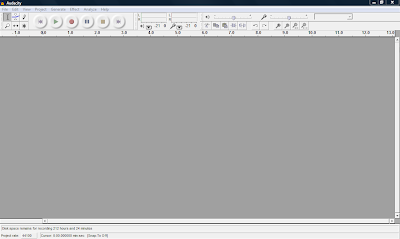
3. Installing Audio Software to Record Your Podcast: You want to use the best possible free software to edit and prepare your podcast. The one I recommend is Audacity. It's free and a very good sound editor. It can be found by clicking on the picture above. Once you go to the site you want to download Audacity 1.2.6 Once you get to the site you will want to choose Audacity 1.2.6 installer and if the download does not begin, choose the option direct link Save the file to your desktop. When you are using the software in Audacity you will need to convert your sound files to an Mp3 and you will need to download the LAME encoder by going to LAME Mp3 Encoder Once you visit the site, you will need to choose the operating system you are using, then click on the LAME download page Toward the bottom of the page you will see the following picture. Click on the appropriate link on the site, and save it to your desktop. Next, you will go to your desktop and double click on the icon and it will ask you to run it, click run and follow the instructions. You will want to remember where you saved it, usually it will be in your Program files menu. Next, double click on the audacity icon on your desktop and you will see the following:

Open Audacity and click on Edit -> Preferences -> File Formats Now this is what you will see. Click on Find Library and follow the instructions. (Here is where you want to find the LAME Mp3 Encoder file, remember it is under Program Files)

4. Using Audio Software to Record Your Podcast: Once you have your software and the Lame Mp3 encoder is installed you are ready to test your microphone. You can either use a headset with a microphone or you can use a microphone and your computer speakers. Plug in your microphone or headset. The microphone is usually the red jack and the headphones is usually the black jack. Go to Start -> Control Panel and double click on Sounds and Audio Devices. Next, click on the Voice tab and click the Test Hardware button. Follow the instructions to test your microphone. For additional tips on settings to make your recordings great visit the following site Great Tips on Recording When you are in Audacity make sure "Microphone" is selected as the recording source in the drop-down menu on the mixer toolbar.

Go to Edit -> Preferences -> On the Audio I/O tab make sure your sound card is selected as the device for playback and recording. In the Channels drop-down box under Recording, choose 1 (Mono). You can use stereo if you want but it will make your file larger and you want to try and keep it as small as possible. Under the Quality tab make sure you choose 44,100Hz as the Default Sample Rate and 16-bit as the Default Sample Format. Under the File Formats tab make sure you choose WAV (Microsoft 16 bit PCM) as the Uncompressed Export Format.

Now you are ready to record. Check on the microphone Meter toolbar in Audacity and you should see a red level indicator moving when you start recording. You can talk into the microphone and make adjustments to the volume until it looks like the picture below.


Now, your almost ready to record. Down below in the picture you will see the featured buttons to start your recording.


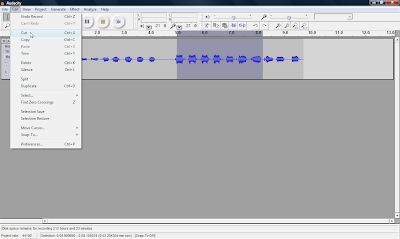
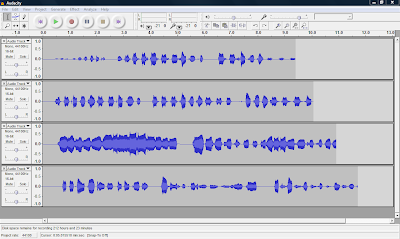
Simply push the Record button and you can start talking. When your done recording press the yellow square button to Stop the recording. If you want to edit your file, where you want to cut out parts of your recording or delete parts. You simply edit out parts by clicking and dragging to highlight the part you want to remove. Select Edit and choose either Cut or Delete. The part you want to edit will turn a grey shaded color. If you want to keep only one section of a recording, highlight that section and select Trim from the Edit menu. Take a look at the picture down below and you will see how to edit your clip.

You can also record many multiple tracks to add to your podcast, which is one of the many features you can't do with movie maker 2.Ok, next week I will be talking abou the final steps in your podcast, step 5. Turning your Podcast into a Vodcast and step 6. Publishing and Promoting. I will also be covering how to add music to your podcast and how to convert your WAV file to an MP3 so you can post online. See you next week.
January 3, 2010

The New Flip Camcord Camera by Pure Digital

Happy New Year!

Greetings Colleagues and Friends,

Today is the day; I know you have all been waiting for the amazing video we shot on my trip to Abilene, TX on Christmas Eve. Remember we were taking a trip from Dallas to Abilene, which is usually a 3 hour trip, but on that day it took us over 9 hours to get to Abilene due to the winter storm we were caught in. Now, I must admit, I drove and my wife shot the video from the front seat while heading west on Interstate 20. I was driving about 20 to 40 miles per hour, until we eventually arrived to a complete stop for about 2-3 hours on the highway. We eventually had to exit near Cisco, TX. I hope you enjoy the winter adventure.


The video was shot with the new Digital Flip Camcord Camera by Pure Digital and I have been asking others about the video we shot and we have been getting great reviews. Remember I said before in an earlier blog that a picture is worth a thousand words. Well, what is a video worth that tells a story? I really like the convenience of just pulling the camera out and pushing the button and capturing video. In fact, it is too easy to shoot video anywhere and at anytime. It is even easier to share the video you just shot with others by replaying it on the screen. By the way, the video was edited in Windows Movie Maker 2.

The camera retails for about $150 and you can find more information on their new HD Flip camera at http://www.theflip.com/ I would recommend this camera, if you do not have an iphone. I personally like the iphone camera, except you have to quickly push a few buttons on the screen to get to it. So, if you are just shooting events, family or friends this camera will make a great addition to all the new tech gadgets that are out. Another thing I like about the flip camera is that on the side you will find a USB connection which you can plug in your USB port in your computer.

One of the great features is that the software and the capability to edit your video clips come with the camera. No CD to load into your computer. The software is built in the camera. That's right! So all you have to do is load the software when you plug it in to any computer. The flip camera lets you record up to 120 minutes, but this has not been a problem since you can unload the clips you shoot on your computer. If I had to improve the camera, I would let flip know to add a light so you can capture shooting at night. I hope you enjoy the film we shot and produced. Stay tuned to more exciting videos in the future.

Package Includes: camcorder, 4 GB built-in flash memory (records up to 120 minutes), 2 AA batteries, tv cable, wrist trap, soft case & quick start guide. You can also buy the optional rechargeable battery pack.

The Digital Video Format: H.264 video and AAC stereo audio in MP4 file format, Video

Resolution: VGA 640 x 480 at 30 frames per second The Minimum Computer System

Requirements Include: PC: 2.0 GHz Intel Pentium 4 or faster processor, Windows XP SP2 with 512 MB or RAM or Vista with 1 GB of RAM, and USB 2.0 port MAC: 1.0GHz PowerPC G4, Intel Core or faster processor, 512 MB of RAM, OS X Tiger 10.4 or Leopard 10.5, and USB 2.0 Port

Next week, I will be talking about how to easily capture pictures or take screen shot pictures in Ms Word. I will also be sharing with you how to edit and crop (cut) the pictures so you can insert them into documents or Power Point presentations. I will also be sharing a few photo sharing sites in which you can post photos for free.

December 27, 2009

$30,000,000 Deal for Sharing Video!


Greetings,

I recently visited with a colleague of mine this past week, and it gave me an idea to blog about today’s topic. Most people have already heard about Youtube. You know where you can create a free account and post your own videos online. Here is a real life rags to riches story. Recently an unknown film producer produced a short four minute video costing around $300, in which robots where attacking a city and Hollywood found it. There soon was a bidding war for the video and finally Sam Raimi, the producer of "Spiderman" offered him a $30 million dollar deal. That’s right a 30 million dollar deal to collaborate with him to produce a new movie with robots of the future blowing up a city. If you the video above is not working, here is the link Panic Attack! or you can click on the picture above. So far this video has received over 5,500,000 hits. To learn more about the video, yahoo has posted a blog discussing more details of the future Hollywood blockbuster. Just visit http://movies.yahoo.com/feature/buzzlog-uruguay-to-hollywood.html So what kind of effect does this have on teachers?


If you have a video creation in which you are teaching a concept or idea you can post it on either http://www.youtube.com/ or http://www.teachertube.com/ Teachertube is a video sharing web site, in which teachers post their collection of videos. When you go to presentations for staff professional development, you know how the presenter usually has a funny video clip stressing an important point in his or her presentation. This is the site where most of those clips are coming from. So check out these new video sharing web sites and yes, you too can produce your own videos to share with the whole world.

Stay tune to next years blogs. I will be teaching you how to download videos from Youtube directly to your computer that you can use in presentations. I will also be reviewing the new flip camera by flip and sharing with you my exciting video about the Wintery Blizzard in West Central Texas I encountered, where I was stranded on the highway for 9 hours with thousands of other people. I will be showing you how to edit, crop pictures and take screen shots of your work in MS Word and soon I will be going step by step how to set up your own microphone in your classroom. I can't forget twitter, how to host your own web cast, and how to create your own podcast, as well as more picture sharing web sites. We have an exciting new year coming so stay tuned and we will see you next year. A lot of school districts have banned Youtube so I have posted the video here.

November 29, 2009

Making Professional Movies with Digital Pictures/Videos for Free!

Today, I am going to share with you some valuable resources on how to make free movies or digital stories with your computer. There is a free software program the Microsoft has installed on all computers that have Windows and most people do not even know that this program is on their own computer. The name of this free program is called Windows Movie Maker (2).

So, what do you do with all those digital pictures and videos you have taken over the past holiday? You can turn them into a professional movie by using the program above. To find the program on your computers you click on Start -> Programs -> Accessories or you can find it in your Programs menu. Look for this picture to the left, when you are looking for it.
Now, I can go over the program and explain all the details of how to add pictures, add video, edit, clip, copy, cut, combine full-motion video, still images, narration, music, effects, titles, and transitions to create your own movies or you can learn it for free by viewing the following link through atomiclearning: http://www.atomiclearning.com/moviemaker2 When you click on the link you will watch professional videos on how to use the program step by step. You can watch from the comfort of your own home, then follow along step by step. Hope you enjoy the free tutorials (they are priceless). Here is another tutorial in which you can read step by step on how to use Windows Movie Maker (2): http://www.microsoft.com/windowsxp/using/moviemaker/default.mspx With this program you can also learn about Creating Digital Stories with Windows Movie Maker 2 Just click on the link above and it will take you to the University of Houston web site on Creating Digital Stories. Hope this helps and we will be sharing more and exciting and free info. in the future with you.