Greetings,
Hope you are doing well this week. What is Claymation? Claymation is short for Clay Animation, which includes the following:
1. Any animation using clay, materials and props.
2. Traditionally time - consuming technique of stop motion video.
3. Using a digital cameras and computers provide accessibility in the classroom.
4. Using Movie Maker 2 or a video editing program.
Claymation can be used for:
* Content on a website
* A prop for a speech
* A multimedia story
* A concept or objective demonstration
* A public service announcement
Why do you want to use Claymation?
1. Motivates, engages and challenges students to be creative.
2. Can be applied to any subject level and area.
3. Perfect for exploring concepts and objectives.
4. Requires planning, organizing and teamwork.
More Ideas for Using Claymation in the Classroom.
* Storytelling
* Creative writing
* Explanations of the Scientific processes
* Human body functions
* Visualizing math concepts
* Recreating historical events & time periods
* Demonstrating physical activities - proper exercise
Please play the video below to see how I have used claymation with a PE Objective in the past.
How do I start making a claymation video?
1. Select your idea or objective you want to communicate to your audience.
2. Plan and build a flow map of your idea.
3. Start building your character and background or back drop for your movie.
4. Take photos of movement of the character.
5. Make the Movie.
In the next 2 weeks, I will be sharing with you the following ideas:
How to build your character with clay, armature, foil, styrofoam, construction paper, small eyes, mouths, etc. and props (rocks and sticks). How to set your stage, claymation tips, animation tips, video tips, filming, editing and producing the film. I will also be sharing with you more claymation videos. To produce one video, your students may want to work in groups and it may take 3 -5 days for the project to finish. See you next week.
Showing posts with label ideas. Show all posts
Showing posts with label ideas. Show all posts
September 12, 2010
August 29, 2010
How to be an Effective Teacher: Part 3 of 3
Greetings,
I Hope you had a great week. I know we had a great first week of school at our school. This is the final part on how to be an effective teacher from Dr. Harry K. Wong's keynote speech. I have been receiving a lot of feedback on my First Day of School PowerPoint I shared last week. Today I will be sharing all the different types of procedures and routines that you need to teach your children throughout the year. These can also be found in Dr. Harry K. Wong's Book: The First Days of School in Chapter 19.
Entering the classroom
Getting to work immediately
Listening to and responding to questions
Participating in class discussions
Keeping your desk orderly
Checking out classroom materials
Indicating whether or not you understand
Coming to attention
Working cooperatively
Changing groups
Working in centers
Keeping your notebook
Going to the office
Knowing the schedule for the day or class
Keeping a progress report
Finding directions for each assignment
Passing in papers
Exchanging papers
Returning student work
Getting materials without disturbing others
Handing out playground materials
Moving about the room
Going to the library or tech center
How to head your paper
Returning to a task after an interruption
Asking a question
Walking in the hall during class time
Which side of the hall to walk on
Responding to the following: fire drill, tornado drill, lock down (when a stranger is in the building)
Saying "thank you"
When you are late or tardy
End of period class dismissal
When you need a pencil or paper
When you are absent
When you need help or conferencing
When you finish early
When visitors are in the classroom
If the teacher is out of the classroom
If you are suddenly ill
Remember there is a procedure for teaching a procedure.
The Three-Steps Approach to Teaching Classroom Procedures (Ch. 20 in First Days of School)
1. Teach -State, explain, model, and demonstrate the procedure.
2. Rehearse - Rehearse and practice the procedures under your supervision.
3. Reinforce - Reteach, rehearse, practice, and reinforce the procedure until it becomes student habit of routine.
The last concept on how to be a very effective teacher is to have very high expectations for you and your students. You want to create an effect on you and then on your students. Positive expectations is the key. Believe in your students and when they say "I can't" point out to your students it means they are not trying.
I Hope these ideas on procedures and routines help you out during the school year. Next week I will be sharing with you the exciting trainings I have been involved in over this past summer. I had the opportunity to take over $11,000 of advanced technology training classes and receive 25 books for free. Find out how next week. See you next week.
I Hope you had a great week. I know we had a great first week of school at our school. This is the final part on how to be an effective teacher from Dr. Harry K. Wong's keynote speech. I have been receiving a lot of feedback on my First Day of School PowerPoint I shared last week. Today I will be sharing all the different types of procedures and routines that you need to teach your children throughout the year. These can also be found in Dr. Harry K. Wong's Book: The First Days of School in Chapter 19.
Entering the classroom
Getting to work immediately
Listening to and responding to questions
Participating in class discussions
Keeping your desk orderly
Checking out classroom materials
Indicating whether or not you understand
Coming to attention
Working cooperatively
Changing groups
Working in centers
Keeping your notebook
Going to the office
Knowing the schedule for the day or class
Keeping a progress report
Finding directions for each assignment
Passing in papers
Exchanging papers
Returning student work
Getting materials without disturbing others
Handing out playground materials
Moving about the room
Going to the library or tech center
How to head your paper
Returning to a task after an interruption
Asking a question
Walking in the hall during class time
Which side of the hall to walk on
Responding to the following: fire drill, tornado drill, lock down (when a stranger is in the building)
Saying "thank you"
When you are late or tardy
End of period class dismissal
When you need a pencil or paper
When you are absent
When you need help or conferencing
When you finish early
When visitors are in the classroom
If the teacher is out of the classroom
If you are suddenly ill
Remember there is a procedure for teaching a procedure.
The Three-Steps Approach to Teaching Classroom Procedures (Ch. 20 in First Days of School)
1. Teach -State, explain, model, and demonstrate the procedure.
2. Rehearse - Rehearse and practice the procedures under your supervision.
3. Reinforce - Reteach, rehearse, practice, and reinforce the procedure until it becomes student habit of routine.
The last concept on how to be a very effective teacher is to have very high expectations for you and your students. You want to create an effect on you and then on your students. Positive expectations is the key. Believe in your students and when they say "I can't" point out to your students it means they are not trying.
I Hope these ideas on procedures and routines help you out during the school year. Next week I will be sharing with you the exciting trainings I have been involved in over this past summer. I had the opportunity to take over $11,000 of advanced technology training classes and receive 25 books for free. Find out how next week. See you next week.


February 21, 2010
How to Create a Podcast or Vodcast Part 1 of 3
Greetings,
Today I am blogging about podcasting and vodcasting. According to wikiipedia, podcasting is defined as a series of digital media files (either audio or video) that are released episodically and downloaded through web syndication. It is a series of digital audio files, usually MP3 that can be downloaded on a regular basis automatically. It's kind of like having your own radio station and you are the broadcaster. Vodcasting or Videocasting is defined as online delivery of video, or using still digital pictures in a video. There are four steps to creating a podcast: plan, produce, publish, and promote. The detailed steps into creating a podcast include the following stages:
1. Planning
2. Gathering Ideas
3. Installing Audio Software to Record Your Podcast
4. Using Audio Software to Record Your Podcast
5. Turning your Podcast into a Vodcast
6. Publishing and Promoting
This blog will break down these steps in a 3 - 4 week blog episode. In this blog episode I will be discussing the first 2 steps. 1. Planning and 2. Gathering Ideas
1. Planning: When you start to create a podcast you need to plan what you are going to say by scripting your words. You might want to have an introduction and a welcome. After you have your script then you can practice recording it. You want it to sound like a radio broadcast or a radio show. When you start a podcast it is important that you continue to create new and regular episodes for your listeners. If you are planning on your students to create podcasts, then you need to monitor the planning process to make sure students are well prepared before recording their podcast.
If you are going to create a podcast or vodcast, and put your students' voices in the project and upload them to the internet, then you are going to need a podcast/vodcast permission slip for their parents to sign. You also want to include a brief detail of what a podcast is, (this will educate the parent) and how only the voices will be used. Now, back to planning your podcast: Here are a few questions you want to ask yourself while you are planning your podcast. What do you want to communicate to your listeners? What do you want your students to communicate in their podcast? How often do you want your students to create a podcast? What do you want to teach your listeners? What type of action do you want your listeners to take during the podcast?
2. Ideas: What topic or idea do you want to share with your listeners? You want to create a 3 -5 minute podcast for your listeners maybe once a week or once every 2 weeks. You want your listeners to always want more from your future podcasts. Here are some additional web sites of sample podcasts:
Elementary Schools:
http://www.kid-cast.com/
Willowdale Elementary School
Wells Elementary School
Jamestown Elementary
Middle Schools:
Harrington Middle School
Mabry Middle School
Twin Valley Middle School
High Schools:
Amphitheater High School
Coral Gables High School
Briggs High School
Educational Podcast Directory You can also go to Itunes and search for student podcasts. You can also go to google and search for podcasts as well. Here is a Podcast Legal Guide you may want to review to make sure you follow all the legal guidelines in podcasting http://wiki.creativecommons.org/Podcasting_Legal_Guide
Here are 25 more ideas that you may want to think about for your podcast or vodcast:
1. Visit http://www.pppst.com/ – This site has thousands of teaching PowerPoints that can be used for Podcasting
2. Talking books
3. Having students read a book
4. Vocabulary lessons
5. Oral tests
6. Test Reviews
7. Spelling lists
8. Pledge Allegiance
9. Numbers and Alphabet songs
10. Recording lectures
11. Introduction to staff
12. Faculty meetings
13. Communications to parents and community
14. Homebound lessons
15. Announcements
16. Lecture notes
17. How to:
a. Check out books in the library
b. How to use the Grade book program
c. Validate grades
d. Fill out forms
e. Do a certain project
18. Book reviews
19. Field trips
20. Student forms
21. Staff Development
22. Dictation
23. Student information
24. Registration information
25. Senior information
Hope these ideas help you out, as you plan your podcast. Next week, I will cover step 3. Installing Audio Software to Record Your Podcast and step 4. Using Audio Software to Record Your Podcast. See you next week.
Today I am blogging about podcasting and vodcasting. According to wikiipedia, podcasting is defined as a series of digital media files (either audio or video) that are released episodically and downloaded through web syndication. It is a series of digital audio files, usually MP3 that can be downloaded on a regular basis automatically. It's kind of like having your own radio station and you are the broadcaster. Vodcasting or Videocasting is defined as online delivery of video, or using still digital pictures in a video. There are four steps to creating a podcast: plan, produce, publish, and promote. The detailed steps into creating a podcast include the following stages:
1. Planning
2. Gathering Ideas
3. Installing Audio Software to Record Your Podcast
4. Using Audio Software to Record Your Podcast
5. Turning your Podcast into a Vodcast
6. Publishing and Promoting
This blog will break down these steps in a 3 - 4 week blog episode. In this blog episode I will be discussing the first 2 steps. 1. Planning and 2. Gathering Ideas
1. Planning: When you start to create a podcast you need to plan what you are going to say by scripting your words. You might want to have an introduction and a welcome. After you have your script then you can practice recording it. You want it to sound like a radio broadcast or a radio show. When you start a podcast it is important that you continue to create new and regular episodes for your listeners. If you are planning on your students to create podcasts, then you need to monitor the planning process to make sure students are well prepared before recording their podcast.
If you are going to create a podcast or vodcast, and put your students' voices in the project and upload them to the internet, then you are going to need a podcast/vodcast permission slip for their parents to sign. You also want to include a brief detail of what a podcast is, (this will educate the parent) and how only the voices will be used. Now, back to planning your podcast: Here are a few questions you want to ask yourself while you are planning your podcast. What do you want to communicate to your listeners? What do you want your students to communicate in their podcast? How often do you want your students to create a podcast? What do you want to teach your listeners? What type of action do you want your listeners to take during the podcast?
2. Ideas: What topic or idea do you want to share with your listeners? You want to create a 3 -5 minute podcast for your listeners maybe once a week or once every 2 weeks. You want your listeners to always want more from your future podcasts. Here are some additional web sites of sample podcasts:
Elementary Schools:
http://www.kid-cast.com/
Willowdale Elementary School
Wells Elementary School
Jamestown Elementary
Middle Schools:
Harrington Middle School
Mabry Middle School
Twin Valley Middle School
High Schools:
Amphitheater High School
Coral Gables High School
Briggs High School
Educational Podcast Directory You can also go to Itunes and search for student podcasts. You can also go to google and search for podcasts as well. Here is a Podcast Legal Guide you may want to review to make sure you follow all the legal guidelines in podcasting http://wiki.creativecommons.org/Podcasting_Legal_Guide
Here are 25 more ideas that you may want to think about for your podcast or vodcast:
1. Visit http://www.pppst.com/ – This site has thousands of teaching PowerPoints that can be used for Podcasting
2. Talking books
3. Having students read a book
4. Vocabulary lessons
5. Oral tests
6. Test Reviews
7. Spelling lists
8. Pledge Allegiance
9. Numbers and Alphabet songs
10. Recording lectures
11. Introduction to staff
12. Faculty meetings
13. Communications to parents and community
14. Homebound lessons
15. Announcements
16. Lecture notes
17. How to:
a. Check out books in the library
b. How to use the Grade book program
c. Validate grades
d. Fill out forms
e. Do a certain project
18. Book reviews
19. Field trips
20. Student forms
21. Staff Development
22. Dictation
23. Student information
24. Registration information
25. Senior information
Hope these ideas help you out, as you plan your podcast. Next week, I will cover step 3. Installing Audio Software to Record Your Podcast and step 4. Using Audio Software to Record Your Podcast. See you next week.
January 17, 2010
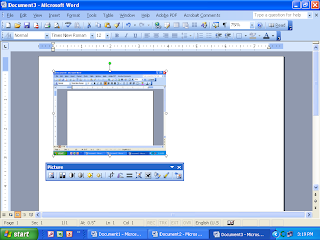
How to Take Pictures of Your Computer Screen Using MS Office 2003
 Hello,
I hope you had a great week. Today I am sharing with you how to take screenshot pictures using MS Office 2003. Remember, all you have to do is push the print screen button on your keyboard. Whey you do this it will take a digital image or picture of your screen, like you see on the top. After you click it, you will not see any message that tells you that you have taken a picture and it is now ready to post. In fact you won’t notice anything different about your screen. When you click on the right side of the mouse chose the option paste and it will copy your picture in your office Document or PowerPoint. To edit the picture you have to double click fast on the left side of the mouse and you will see the Format Picture Box. If this does not work you will need to go to the very top of the screen and and chose the third option View. Then go down to the Toolbars option and check the option: picture and you will see a Picture tool bar appear on your screen like this  Once you see the Picture option box, choose the little dog. It is the 4th Picture from the right side of the toolbox and choose the option Tight.
If you want to edit or crop the picture chose this icon  Once you click on the little crop icon, you will see black lines around your picture. All you have to do is left click on the lines while holding the mouse and move the mouse to where you want to crop or cut the picture.
  Now if you double clicked on the picture you will see the following six tab options Color and Lines, Size, Layout, Picture, Text Box, and Web. You want to chose the third tab or the Layout option. When you chose this option you will see the following
  Next, you will click on the Tight option. It is located in the middle of the screen. Now you must decide if you want the picture aligned left, center, right or other. I would chose other and the when you click on the picture it will allow you to move it anywhere you want in your document. Once you chose the option you want click on the OK button on the bottom. You will see little white round dots around your picture (To see these white dots look very closely at the picture at the very top), which means you can now hold down the left side of the mouse to move it anywhere you want in your picture. You can also make the picture small or large by clicking on one of the dots and moving the mouse. Hope these directions help you out when you are practicing taking screen shot pictures and inserting them in your Documents or Power Points. We will see you next week.
December 27, 2009
$30,000,000 Deal for Sharing Video!
Greetings,
I recently visited with a colleague of mine this past week, and it gave me an idea to blog about today’s topic. Most people have already heard about Youtube. You know where you can create a free account and post your own videos online. Here is a real life rags to riches story. Recently an unknown film producer produced a short four minute video costing around $300, in which robots where attacking a city and Hollywood found it. There soon was a bidding war for the video and finally Sam Raimi, the producer of "Spiderman" offered him a $30 million dollar deal. That’s right a 30 million dollar deal to collaborate with him to produce a new movie with robots of the future blowing up a city. If you the video above is not working, here is the link Panic Attack! or you can click on the picture above. So far this video has received over 5,500,000 hits. To learn more about the video, yahoo has posted a blog discussing more details of the future Hollywood blockbuster. Just visit http://movies.yahoo.com/feature/buzzlog-uruguay-to-hollywood.html So what kind of effect does this have on teachers?
If you have a video creation in which you are teaching a concept or idea you can post it on either http://www.youtube.com/ or http://www.teachertube.com/ Teachertube is a video sharing web site, in which teachers post their collection of videos. When you go to presentations for staff professional development, you know how the presenter usually has a funny video clip stressing an important point in his or her presentation. This is the site where most of those clips are coming from. So check out these new video sharing web sites and yes, you too can produce your own videos to share with the whole world.
Stay tune to next years blogs. I will be teaching you how to download videos from Youtube directly to your computer that you can use in presentations. I will also be reviewing the new flip camera by flip and sharing with you my exciting video about the Wintery Blizzard in West Central Texas I encountered, where I was stranded on the highway for 9 hours with thousands of other people. I will be showing you how to edit, crop pictures and take screen shots of your work in MS Word and soon I will be going step by step how to set up your own microphone in your classroom. I can't forget twitter, how to host your own web cast, and how to create your own podcast, as well as more picture sharing web sites. We have an exciting new year coming so stay tuned and we will see you next year. A lot of school districts have banned Youtube so I have posted the video here.
December 20, 2009
Tell the Whole World!
 If a picture is worth a thousand words, then what is a talking picture worth? This week I am introducing a new web site that lets you turn any picture into a talking picture. That’s right, a regular picture into a talking picture. All you have to do is click on the picture to the left or click on the following link: http://www.blabberize.com/ Just like the picture says, it only takes 30 seconds. It's fast, easy and also fun to use. How would you like to use this tool to teach the students a concept or an idea from a talking picture?Your students or audience will love it. You can also put it in presentations or entertain your audience to make a point. Hope you have fun playing with it and we will see you next week.
December 13, 2009
Express Your Next List of Words With Creativity!
 Greetings fellow Colleagues,
As you know, we all give our students list of words, ides or concepts to remember. How can we find a unique and fun way for students to remember them? Well here is a cool web site that can turn your list of words or ideas into a format that represent them in a unique way. It allows us to express creativity by putting words all together to make unique vertical and horizontal designs called word clouds. You can use different colored fonts, layouts and colors in your own word cloud. After you have finished creating your word cloud then you can save it or print it or share it with others in their gallery. You can also see other word cloud creations that other people have made and shared with the world. To try it out for free you can visit http://www.wordle.net/ Hope you enjoy this site and we will see you next week.
December 6, 2009
Valuable Writing and Brain Based Resources!
Hello,
Today I will be sharing valuable writing and brain based research resources. My first web site has numerous writing resources you can use with your elementary writing class. The web site is located at: http://tinyurl.com/Writing201 I attended three full days of training in which most of the ideas came from Colleagues/Teachers who attended the New Jersey Writing Project and shared their wonderful ideas with us. Here is a list of the recommended books that were given to us at the NJ Writing Workshop.
The next web site has many brain based research resources that Eric Jensen shared with us at a Workshop in San Diego, California. Eric Jensen is a major leader in the brain based research area and speaks at numerous engagements every year. Also there are resources and ideas from another work shop I recently attended in Dallas, Texas. Most of the ideas can be used as topics for discussion with teachers to facilitate collaborative discussions in Professional Development settings. The web site is located at: http://tinyurl.com/ErikJensen Hope you enjoy these two resources. Here are a few of the resources that were mentioned in his workshop and I have already added these resources to my library.
Today I will be sharing valuable writing and brain based research resources. My first web site has numerous writing resources you can use with your elementary writing class. The web site is located at: http://tinyurl.com/Writing201 I attended three full days of training in which most of the ideas came from Colleagues/Teachers who attended the New Jersey Writing Project and shared their wonderful ideas with us. Here is a list of the recommended books that were given to us at the NJ Writing Workshop.
The next web site has many brain based research resources that Eric Jensen shared with us at a Workshop in San Diego, California. Eric Jensen is a major leader in the brain based research area and speaks at numerous engagements every year. Also there are resources and ideas from another work shop I recently attended in Dallas, Texas. Most of the ideas can be used as topics for discussion with teachers to facilitate collaborative discussions in Professional Development settings. The web site is located at: http://tinyurl.com/ErikJensen Hope you enjoy these two resources. Here are a few of the resources that were mentioned in his workshop and I have already added these resources to my library.
Subscribe to:
Posts (Atom)

