Total Pageviews

Showing posts with label word. Show all posts

September 5, 2010

30 in 48 Days!


Greetings,

Hopefully you are having a great Labor Day today. This week I will be sharing with you the exciting trainings I have been involved in over the summer. Yes, it is true that I had the opportunity to take over $11,000 of advanced technology training classes and received 25 software books with lessons, exercises and online files.

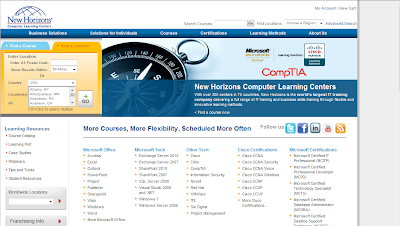
Our technology department was so kind and gracious to purchase Summer PassPort Passes from New Horizons Computer Learning Center for a few of our Computer Lab Teachers. New Horizons is a technology learning center where you can take classes for a nominal fee. I participated in almost 30 advance technology classes. Some of the classes included Adobe CS4 software like Photoshop (web and print), Illustrator, Flash, Dreamweaver and Acrobat. Other classes included, Web Design with XHTML, HTML, CSS and SharePoint Designer 2007.

I can not forget the MS Office 2007 classes I took, which includes Word, Excel, PowerPoint, Access, Publisher and Visual Basics Application (VBA) Programming. VBA is a class where you learn how to create macros or type code in MS Office programs. Out of all these classes I participated in, I had the chance to take Beginning, Intermediate and Advanced classes. Most of the classes were anywhere from 7 hours to 14 hour classes and daily classes would be from 8AM - 4PM, Mon. - Fri.

I knew a lot of the MS Office software programs, but this gave me a chance to brush up and review key concepts, tasks and ideas. I did not realize the value of these classes. If you were to take these classes on average it would cost you around $300 and if you were to take the Adobe classes it could run you nearly $700. What an investment! If I had to add the total instructional hours it would total over 200 hours!

I am sharing this information with you not to impress you, but to impress upon you to really achieve, and reach your goals and to continue to learn in whatever field you are in. I now have build up my technology library and created a reference library. These are invaluable resources and references that will assist me to create additional tasks and exercises for all my teachers and students.

I also met some great instructors and students at New Horizons. I hope to continue my education and attend New Horizons next year to take MS Office 2010 classes and Adobe CS5 classes. For additional resources for your training needs, please visit http://www.newhorizons.com/ or you can get a subscription for online learning video classes at www.atomiclearning.com Hope to see you next week. Have a great week!

January 17, 2010

How to Take Pictures of Your Computer Screen Using MS Office 2003

Hello,

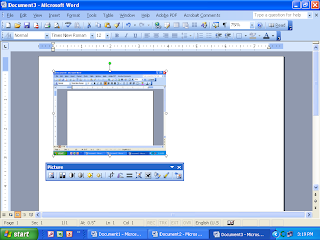
I hope you had a great week. Today I am sharing with you how to take screenshot pictures using MS Office 2003. Remember, all you have to do is push the print screen button on your keyboard. Whey you do this it will take a digital image or picture of your screen, like you see on the top. After you click it, you will not see any message that tells you that you have taken a picture and it is now ready to post. In fact you won’t notice anything different about your screen. When you click on the right side of the mouse chose the option paste and it will copy your picture in your office Document or PowerPoint. To edit the picture you have to double click fast on the left side of the mouse and you will see the Format Picture Box. If this does not work you will need to go to the very top of the screen and and chose the third option View. Then go down to the Toolbars option and check the option: picture and you will see a Picture tool bar appear on your screen like this Once you see the Picture option box, choose the little dog. It is the 4th Picture from the right side of the toolbox and choose the option Tight.

If you want to edit or crop the picture chose this icon Once you click on the little crop icon, you will see black lines around your picture. All you have to do is left click on the lines while holding the mouse and move the mouse to where you want to crop or cut the picture. Now if you double clicked on the picture you will see the following six tab options Color and Lines, Size, Layout, Picture, Text Box, and Web. You want to chose the third tab or the Layout option. When you chose this option you will see the following Next, you will click on the Tight option. It is located in the middle of the screen. Now you must decide if you want the picture aligned left, center, right or other. I would chose other and the when you click on the picture it will allow you to move it anywhere you want in your document. Once you chose the option you want click on the OK button on the bottom. You will see little white round dots around your picture (To see these white dots look very closely at the picture at the very top), which means you can now hold down the left side of the mouse to move it anywhere you want in your picture. You can also make the picture small or large by clicking on one of the dots and moving the mouse. Hope these directions help you out when you are practicing taking screen shot pictures and inserting them in your Documents or Power Points. We will see you next week.